Add a user
Give someone a sign-in to your talkback. They use it in the app or a browser, and you choose afterwards which lines they can talk and listen on.
- Takes about
- 2 minutes
- You need
- Your server open in Admin (how to open it)
- A username for them, and a password to start them off
In Admin, go to Users. The form across the top adds a person, and the list below it is everyone on your server.
Type a username of 2 to 32 letters, digits, dots, hyphens or underscores. It is what they type to sign in, and no two people can share one.
Type a display name, which is what other people see on the talk panel and in Live. If you leave it empty, the username is used.
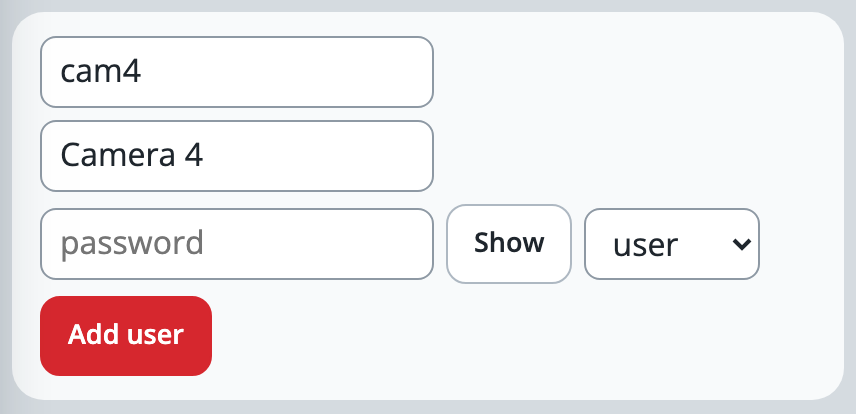
Type a password of at least 6 characters for them to start with. The box hides it as you type: press Show beside it to check it before you tell them.
Choose user for crew, or admin for someone who should run this Admin page too, and press Add user. An admin can change anything in Admin, including who else is an admin.
The person appears in the list, which is in name order. On a free trial they take one of your 10 places.
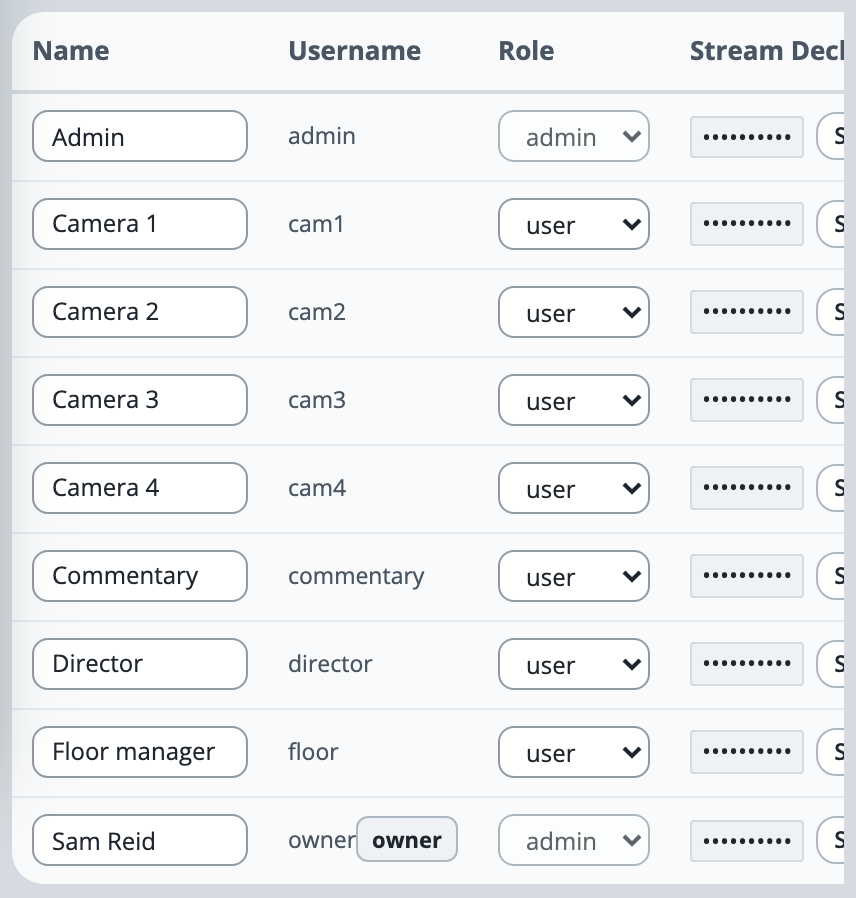
Choose which lines they can use (Who can talk or listen), then send them the app: Get your crew on. Until you give them a line, they have no group to join.
If it doesn’t work
It says “This site’s licence covers 10 users”
That is your trial’s limit: the owner does not count, and neither does anyone you have disabled. Disable or remove someone first, or write to support@oncommstalkback.com for more. The form empties when you press Add user, so type the person again afterwards.
It says “username: 2–32 letters, digits…”
The username has a space or another character it may not. Use letters, digits, dots, hyphens and underscores only.
It says “username already exists”
Somebody has that username already. Look in the list: they may be there already, perhaps disabled. Otherwise choose another.
It says “owner” is kept for the site’s owner
The name owner belongs to your own account, which signs in from the website. Choose another username.
It says “password must be at least 6 characters”
Choose a longer one. To change someone’s password later, press Password beside their name in the list and type a new one.
Stuck on a step?
Write to support@oncommstalkback.com with the page you are on and what your screen says. Or book a walkthrough, and we will go through it with you.