Get your crew on
Give each person a sign-in, send them the app, and have them connect to a group. It is the same on a Mac, a Windows PC, an iPhone, an Android phone or in a browser.
- Takes about
- 5 minutes
- You need
- Your server open in Admin (how to open it)
- A group with at least one partyline (how to make them)
In Admin, go to Users and make a sign-in for each person (Add a user). Give them a username and a password to start with.
Choose what each person can do in each group (Who can talk or listen). A person with no line in a group does not see it.
In Admin, open Downloads. It shows the server name your crew type, and one link to send them that has every app.
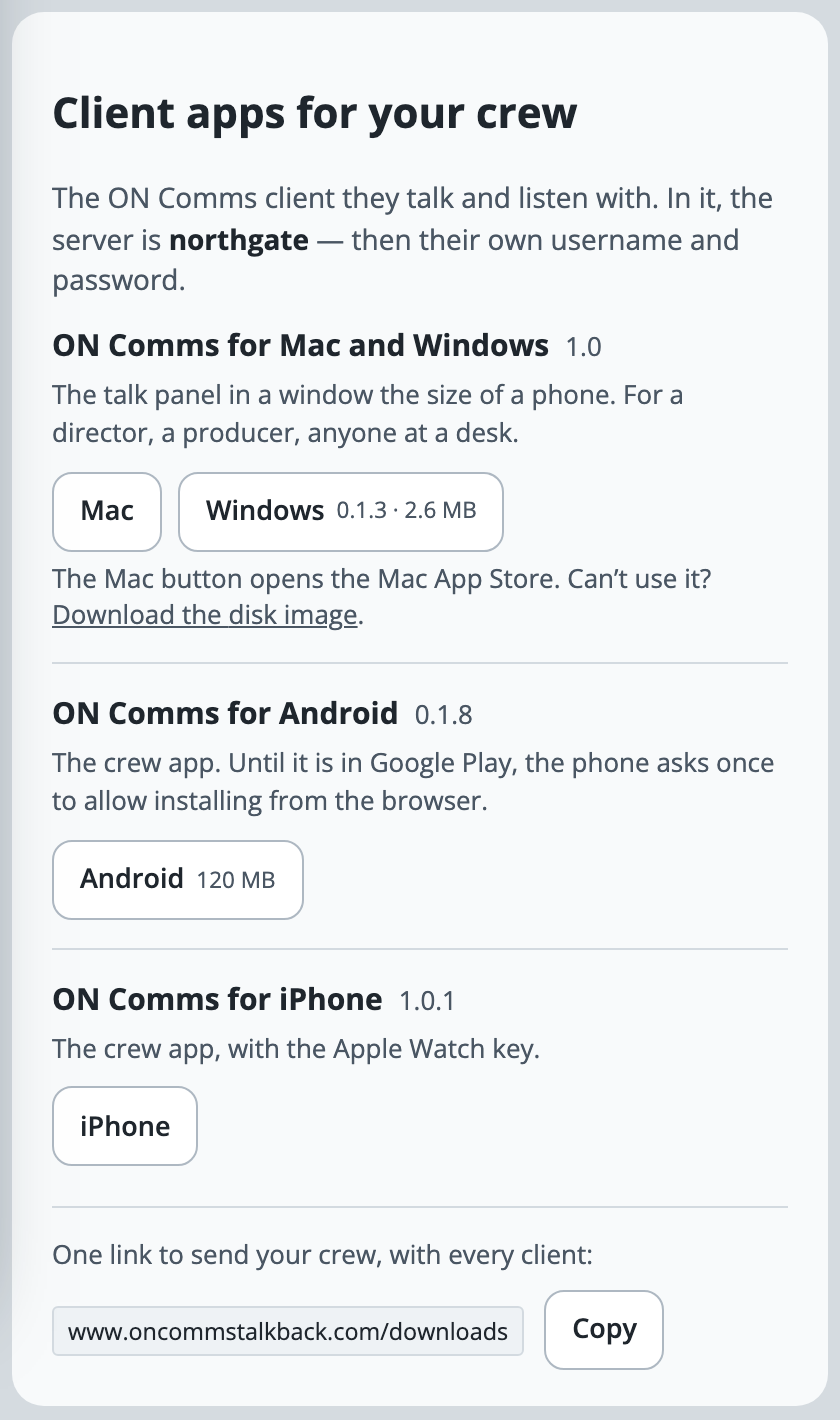
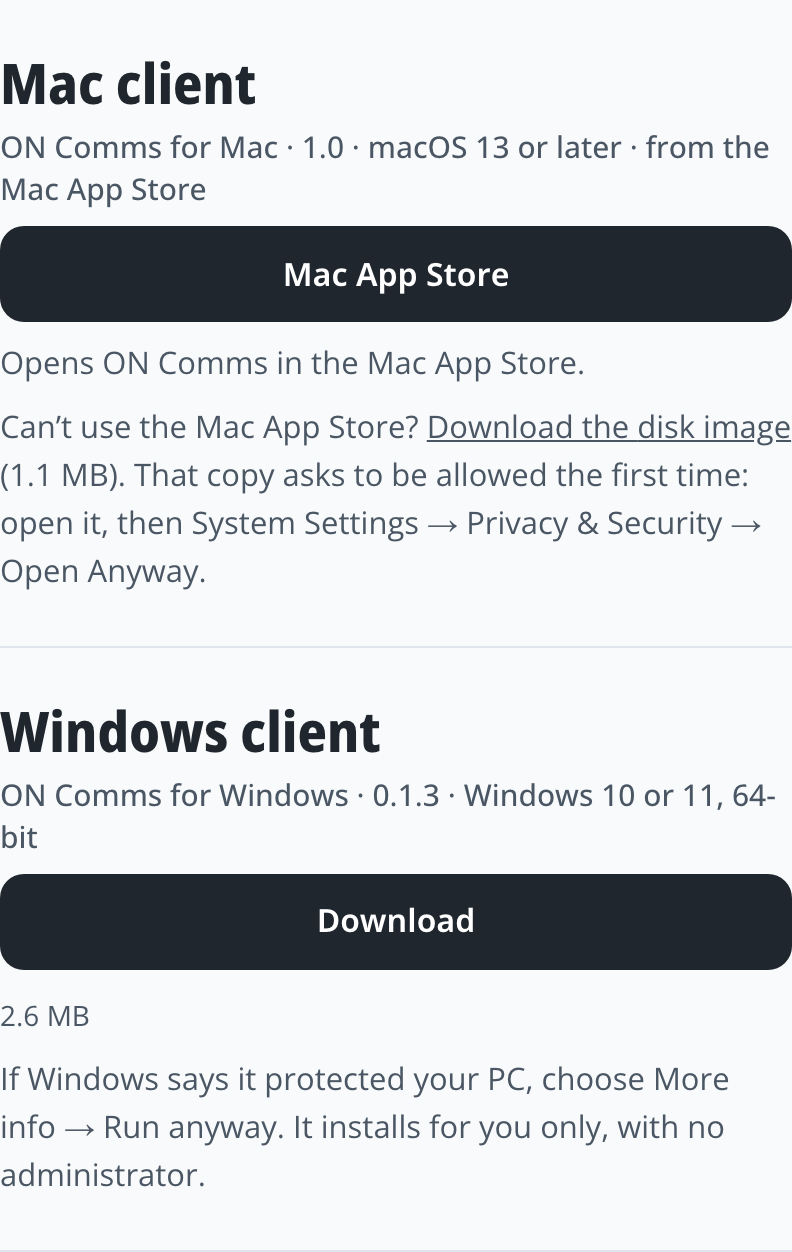
Send them that link. They get the app for their Mac (from the Mac App Store), Windows PC, iPhone (from the App Store) or Android phone, and the page says what each will ask the first time.
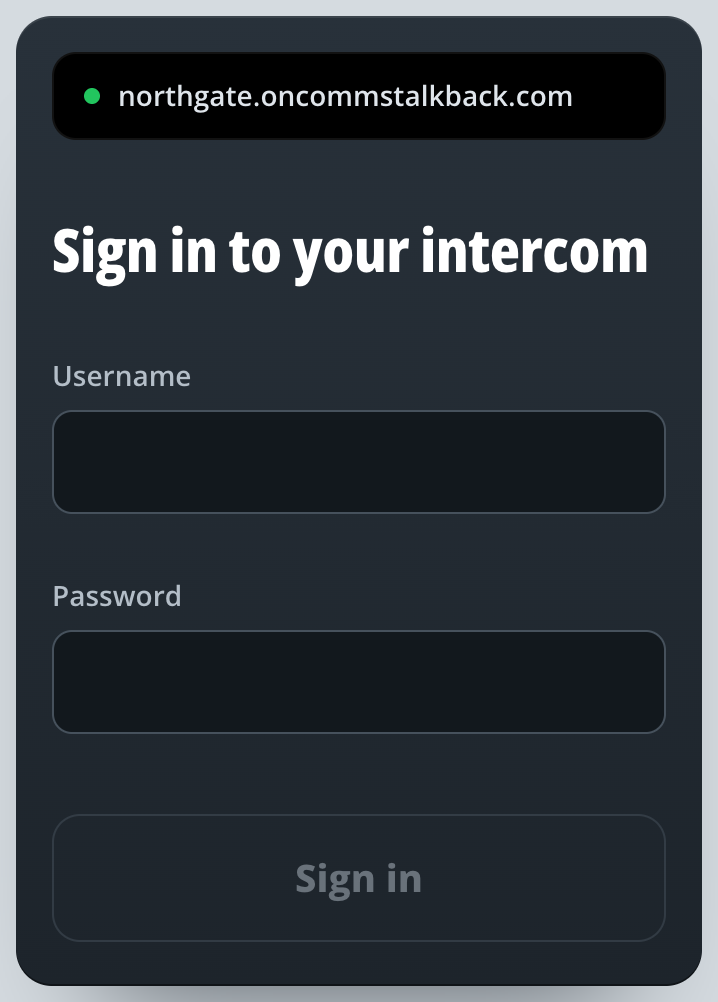
In the app, they type your server name, then their own username and password. In a browser (Chrome or Edge, or Safari on a Mac), they go to your server’s address and sign in there.
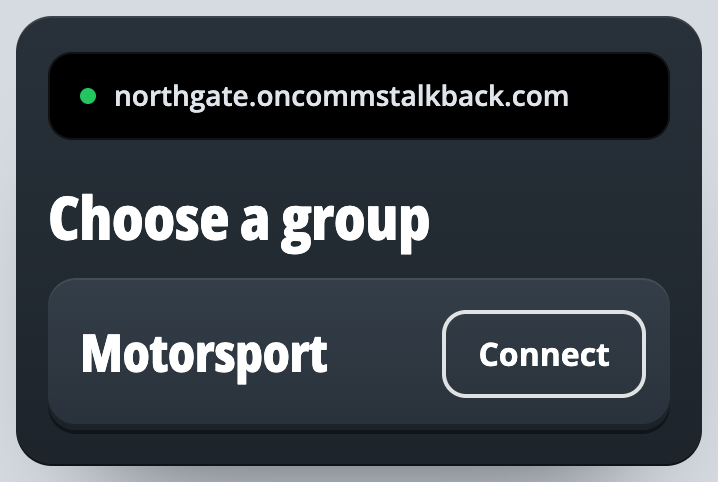
They choose the group and press Connect. The first time, the app or browser asks to use the microphone: they choose Allow.
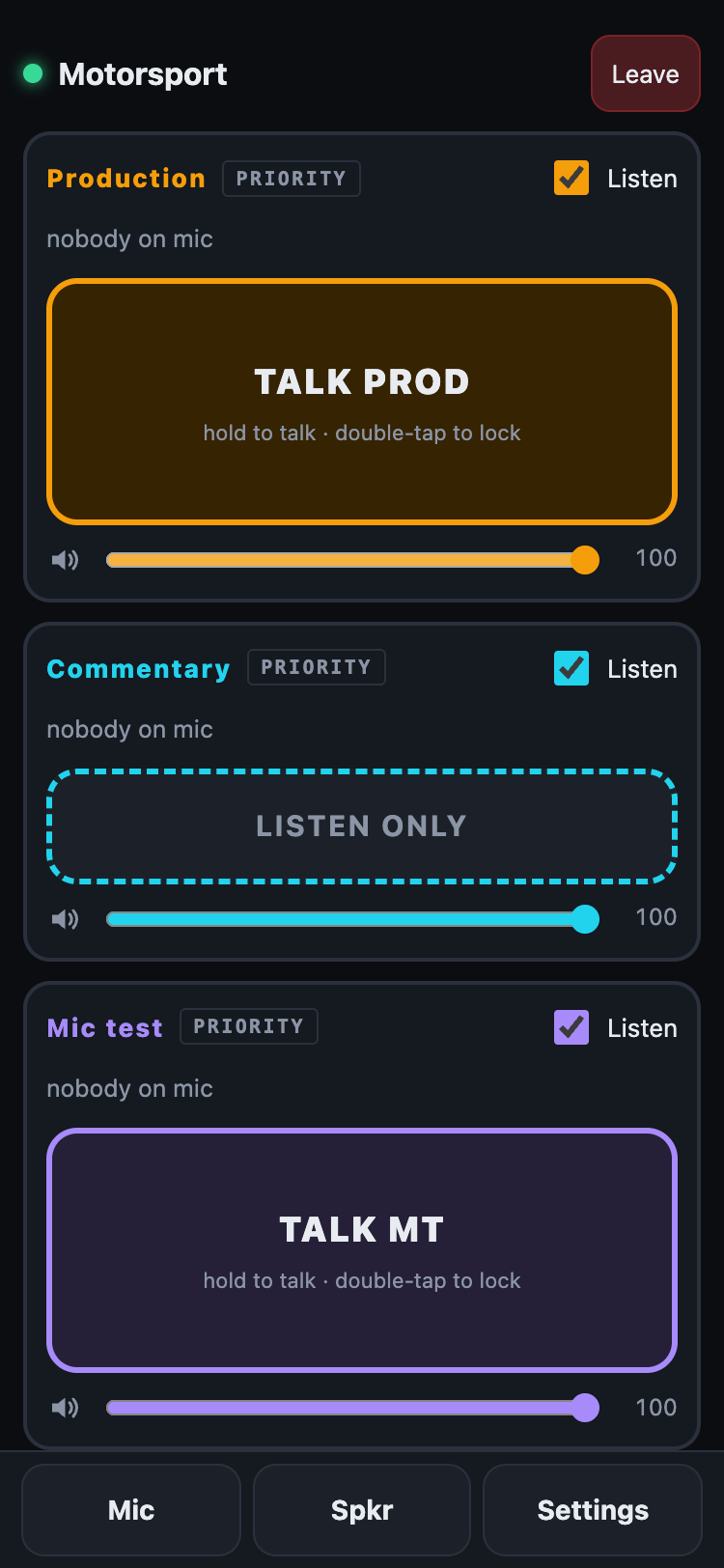
The talk panel opens, with a key for each line they can talk on. For your crew says how to use it, and is a page you can send them.
If it doesn’t work
It says the account is already on air on another device
Each person can be on air on one device at a time. They leave on the other device first. If it lost its signal, the account is free again in about half a minute, or an admin can remove it in Live.
It says wrong username or password
In Admin, go to Users and press Password beside their name to give them a new one.
It says “You’re not in any group yet”
Give them a line in a group: Who can talk or listen.
It says the licence ended, so nobody new can sign in
Your trial has ended. Contact support@oncommstalkback.com to carry on. See Your free trial.
Nobody can hear them, or the microphone is blocked
Allow the microphone for your server’s address in the browser’s settings, or for the app in the phone’s settings, then open it again.
On a Mac, it joined but nobody hears them
Bring the ON Comms window to the front. macOS only lets a window that is showing start the microphone, so keep it showing when they press Connect. Once they are on air, other windows can cover it and the Mac can lock.
On a Mac, the Mac App Store installed it as “ON Comms 2”
They already had ON Comms from the website. Quit both, then move ON Comms (the old one) from Applications to the Bin and keep ON Comms 2, the Mac App Store copy. Moving the old one to the Bin first avoids this.
A button says “Tap to enable audio playback”
Phones and browsers will not play sound until the page has been tapped. Tap it.
Stuck on a step?
Write to support@oncommstalkback.com with the page you are on and what your screen says. Or book a walkthrough, and we will go through it with you.