Who can talk or listen
Choose, person by person and line by line, who can talk, who can only listen, and who is not on a line at all. A change reaches people already on air within a moment.
- Takes about
- 3 minutes
- You need
- Your server open in Admin (how to open it)
- At least one user and one group
In Admin, go to Assignments. Pick the group at the top if you have more than one, and you see a row for each person and a column for each line.
Each person has a switch for each line. – means not on the line, so its key does not appear on their panel; L is listen only; T is talk and listen.
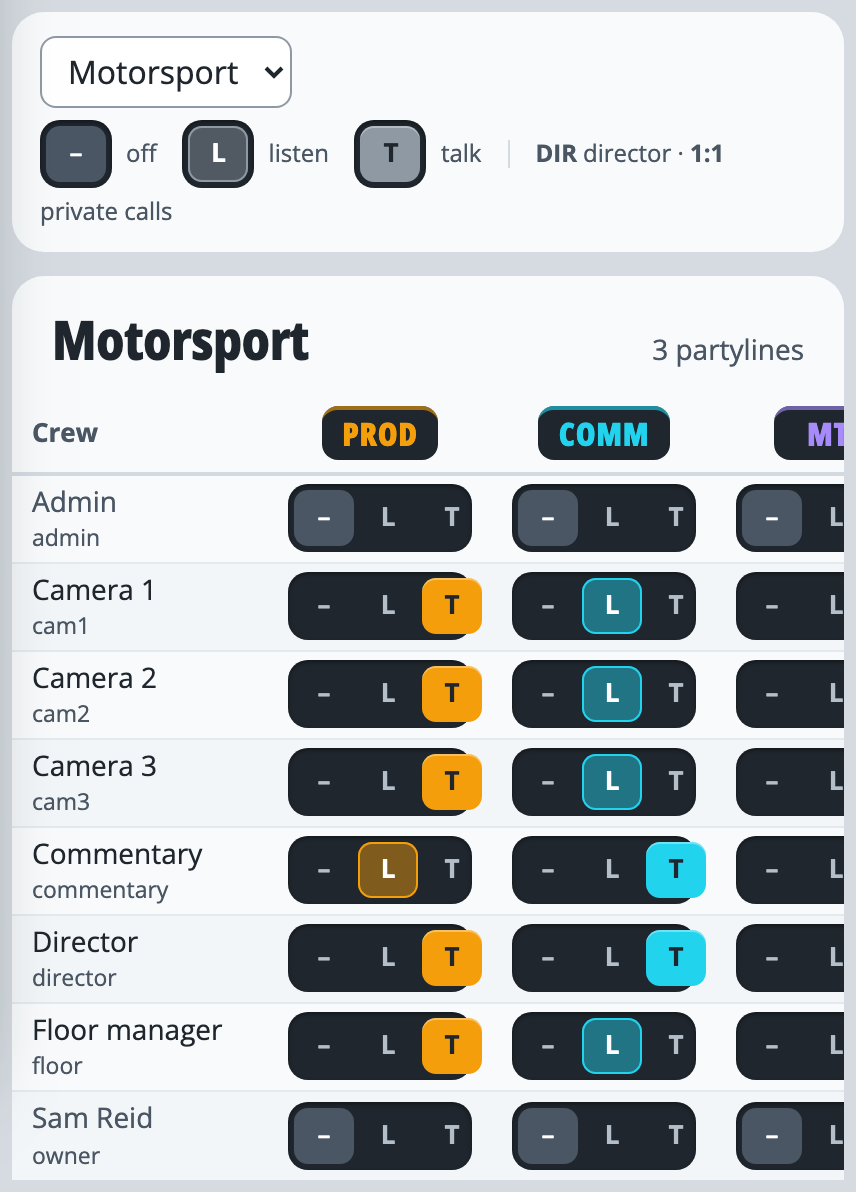
Press the position you want. It is saved at once, and people already connected get it without needing to reconnect.
Someone with every line on –, and DIR unticked, is not in the group, and does not see it in their list of groups.
At the right of the table (scroll sideways on a phone) are two ticks. DIR marks a person as the group’s director, with a Director badge in Live and on their list of groups.
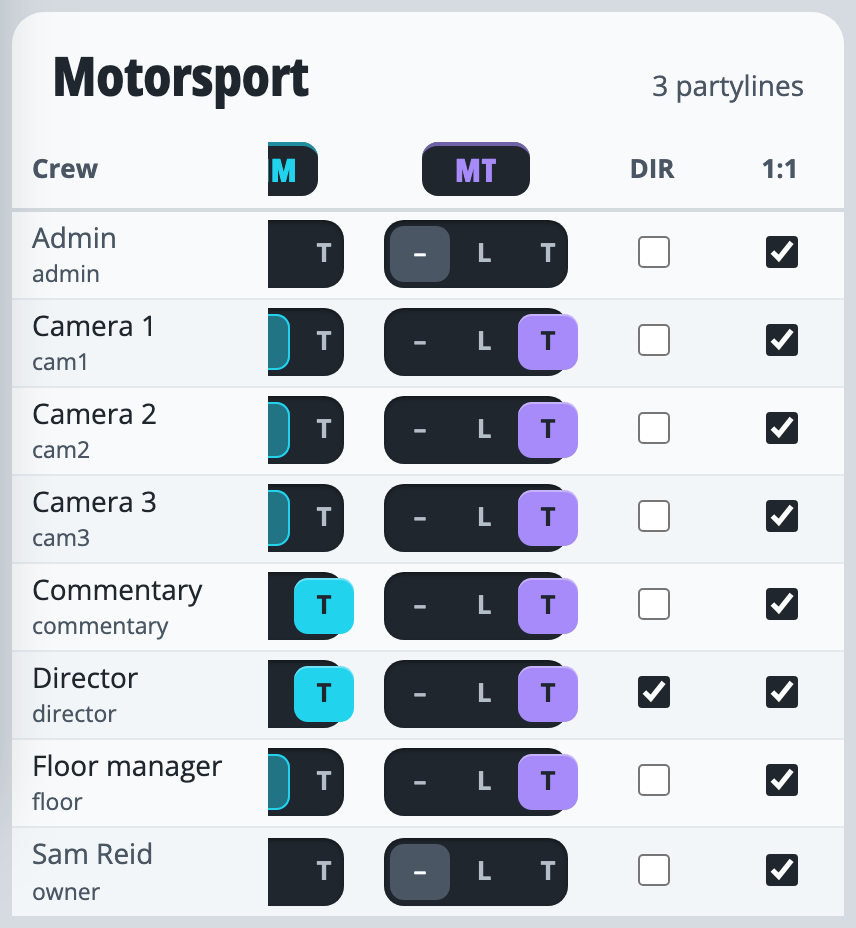
1:1 lets a person make and answer private calls. It is ticked to begin with: untick it to stop someone using them.
If it doesn’t work
A person is missing from the table
People you have disabled are not listed: Enable them first. Anyone you have not yet added needs adding.
The page says “Add groups and users first”
There is nothing to put in the table yet. Make a group and add a user.
You are an admin and the talk panel says “You’re not in any group yet”
Being an admin does not put you on any lines. You are in the table like everyone else, so give yourself a line here. The owner is in it too.
Stuck on a step?
Write to support@oncommstalkback.com with the page you are on and what your screen says. Or book a walkthrough, and we will go through it with you.