Priority lines
Make a line that turns the others down while someone talks on it, so that someone such as a director can cut through. Each person can then choose their own setting for it.
- Takes about
- 2 minutes
- You need
- Your server open in Admin (how to open it)
- A group with its lines (how to make them)
In Admin, go to Groups and press Edit in the group’s row.
Find the line in the table, and tick priority in its Priority column. On a phone, scroll the table sideways to reach it.
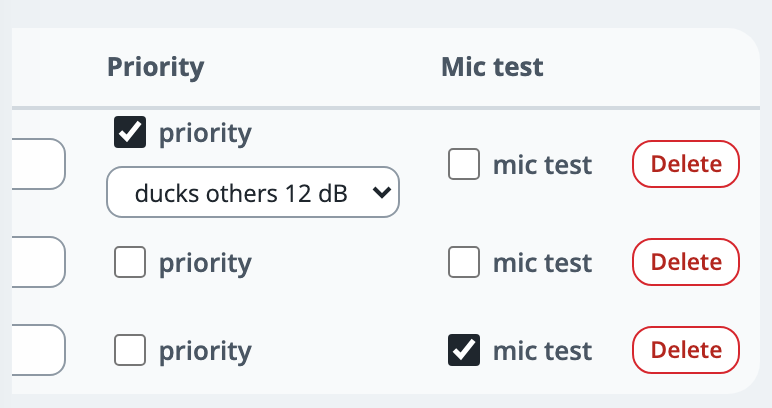
Choose how far it turns the others down: ducks others 6 dB, 12 dB (the default), 20 dB, or silences others.
From then on, while someone talks on that line, the other lines turn down by that amount for everyone listening to it. They come back a moment after the priority line goes quiet.
A person talking on the priority line is not turned down themselves, priority lines do not turn each other down, and private calls are not turned down.
Each person can set priority their own way, for themselves only, with the PRIORITY tag on a line’s key, which opens a menu. What you set here applies to everyone who has not chosen.
If it doesn’t work
A line gets quieter while someone talks
A priority line is in use. The quieter line shows ▼ and how many dB, and comes back by itself.
The other lines go completely silent
The priority line is set to silences others. Choose 6 dB, 12 dB or 20 dB instead.
One person says it does not work for them
They may have chosen their own setting. Ask them to open the line’s PRIORITY tag: its menu shows Default selected while they follow yours. Changing the tick in Admin does not change a choice they have made.
Stuck on a step?
Write to support@oncommstalkback.com with the page you are on and what your screen says. Or book a walkthrough, and we will go through it with you.