Mic test lines
A line where each person hears themselves played back, so they can check their microphone before a show. Make one by ticking a box on a line.
- Takes about
- 2 minutes
- You need
- Your server open in Admin (how to open it)
- A group (how to make one)
In Admin, go to Groups and press Edit in the group’s row.
Add a line for it: type Mic test in the box at the top and press Add partyline. Or use a line you already have.
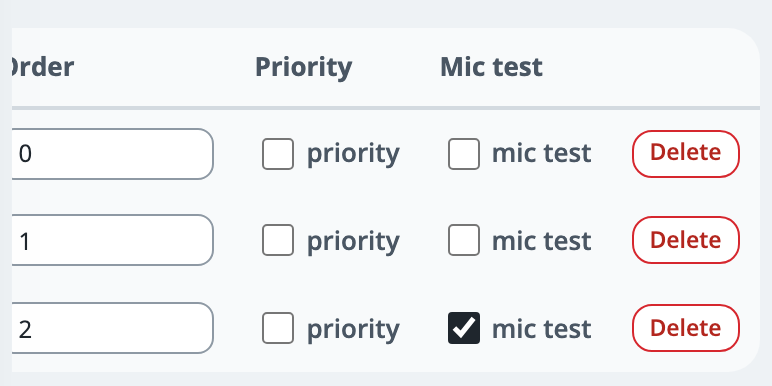
In the Mic test column, tick mic test on that line. On a phone, scroll the table sideways to reach it.
Give people T on it in Assignments, so they can talk on it (Who can talk or listen).
Tell them to hold the Mic test key, say a few words and let go. A moment later they hear themselves played back, to them alone.
Everyone else on that line hears the person live while they hold the key, as on any line, but none of the playback. So keep the line for testing.
If it doesn’t work
Nothing is played back
Check that the person has T on the line, not L, and that they held the key for at least a moment and then let go: the playback comes after it. Their Listen tick for the line must be on, its level up, and Spkr not muted.
Only the start of a long test is played back
A take is kept for 20 seconds at most, so a few words are enough.
The playback is too quiet
It plays at the level of the line’s slider on that person’s panel. They can raise it there.
Stuck on a step?
Write to support@oncommstalkback.com with the page you are on and what your screen says. Or book a walkthrough, and we will go through it with you.