Open your talkback
Once your server is live, sign in on the website and press Open talkback. You arrive in your server’s Admin as its owner, where you set up your people and lines.
- Takes about
- 2 minutes
- You need
- The email address and password you chose when you signed up
- Your server live: you have the email saying so
In the email that says your server is live, press Sign in and set it up. Or go to Sign in yourself.
Under Company account, type your email address and password, and press Sign in.
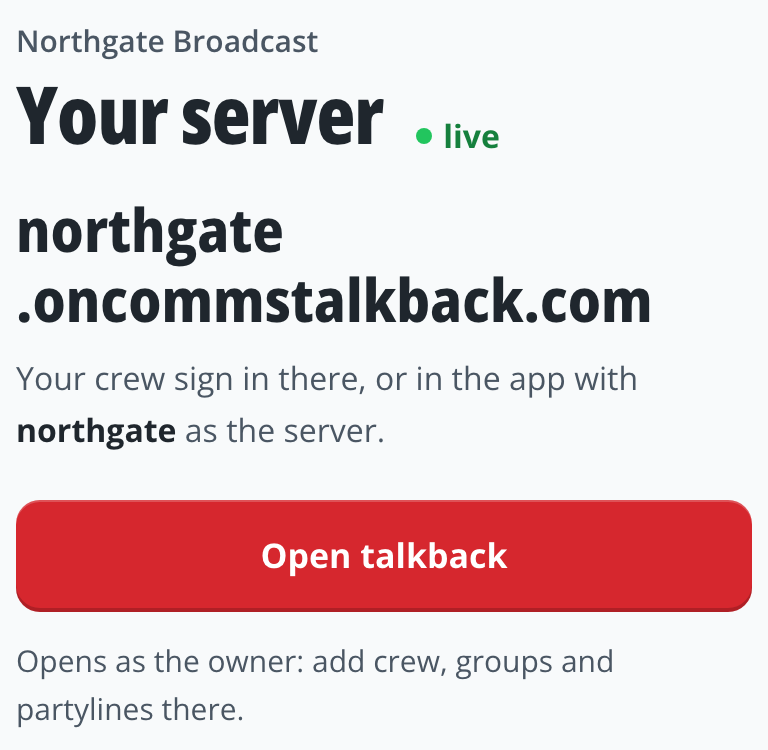
Your account page shows your server with a green live, and its address. Press Open talkback.
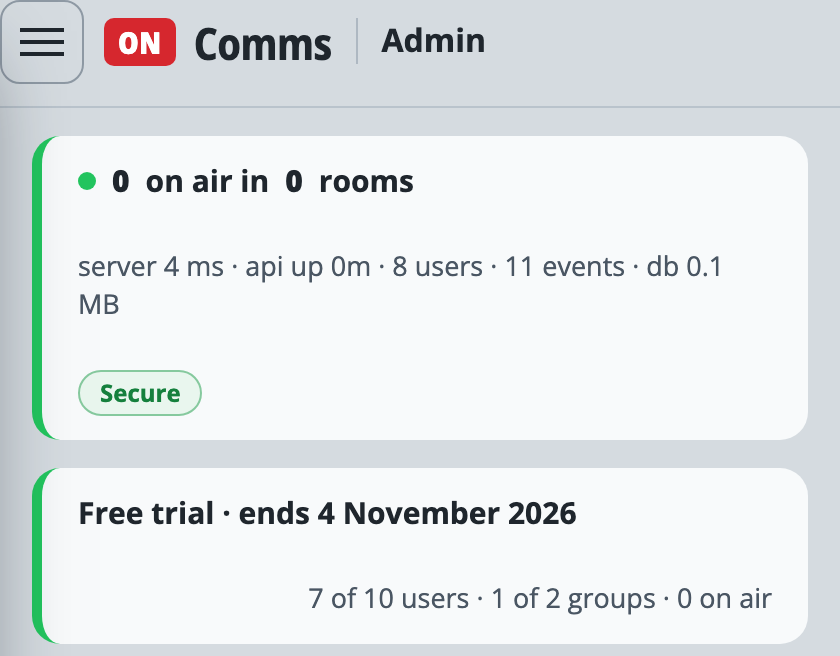
You arrive in your server’s Admin, signed in as its owner. There is no password to type: signing in on the website is what lets you in.
Note your server’s address, which is also on your account page. Your crew type the first part, the server name, into the apps, or the whole address into a browser.
Next, make your first group and its lines (Groups and partylines), then get your crew on.
If it doesn’t work
Open talkback says the link has been used, or has run out
It works once, for a minute. Go back to your account page and press Open talkback again.
You typed “owner” at your server’s sign-in page, and it says “The owner signs in at” the website
The owner has no password on the server. Sign in on the website as above and press Open talkback.
Your account page says your server is “being checked”
It is not live yet. A person is checking the sign-up, and we email you the moment it is.
Someone else needs to use Admin
In Users, add them with the role admin (Add a user). They sign in at your server’s address with their own username and password.
Stuck on a step?
Write to support@oncommstalkback.com with the page you are on and what your screen says. Or book a walkthrough, and we will go through it with you.