Sign up and confirm your email
Create your company’s account, choose the name your crew will type to reach your server, and confirm your email address. A person then checks the sign-up, and once it is approved your server is live.
- Takes about
- 3 minutes
- You need
- Your company’s name
- The email address you will sign in with
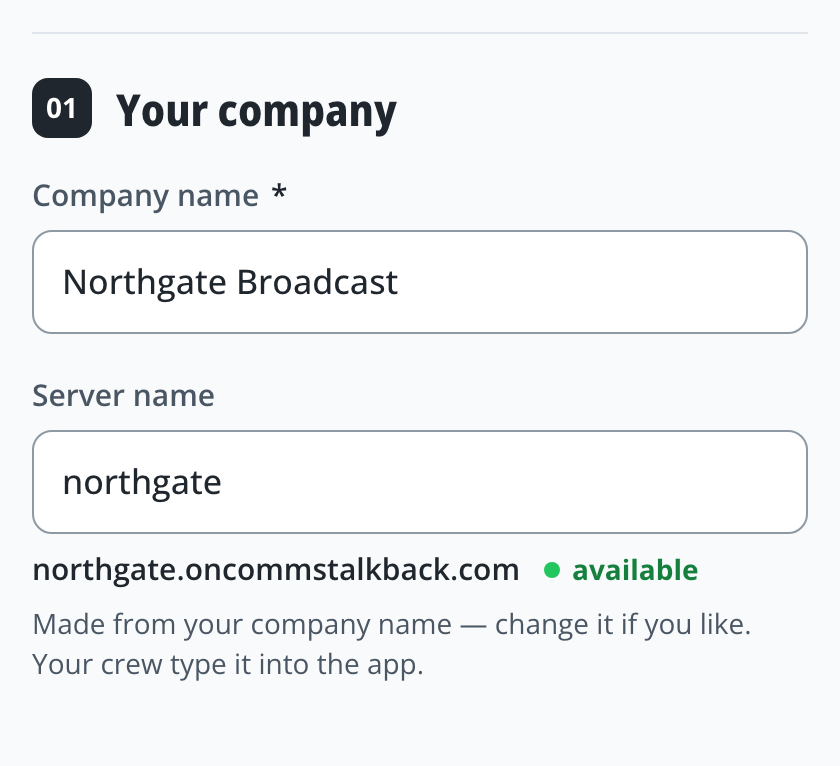
Open Create an account and type your Company name. The Server name below it is filled in from it.
Change the server name if you like. It makes your server’s address, and your crew type it into the app, so use 3 to 32 letters, digits or hyphens. Wait for the green available.
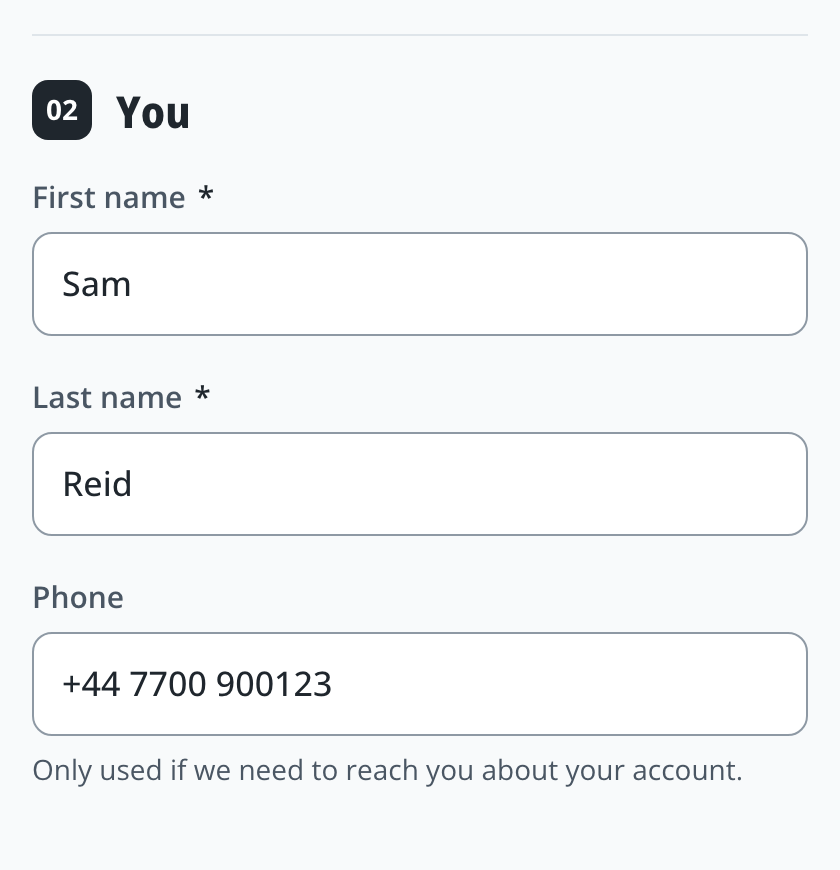
Under You, type your first and last name. A phone number is optional: it is only used if we need to reach you about your account.
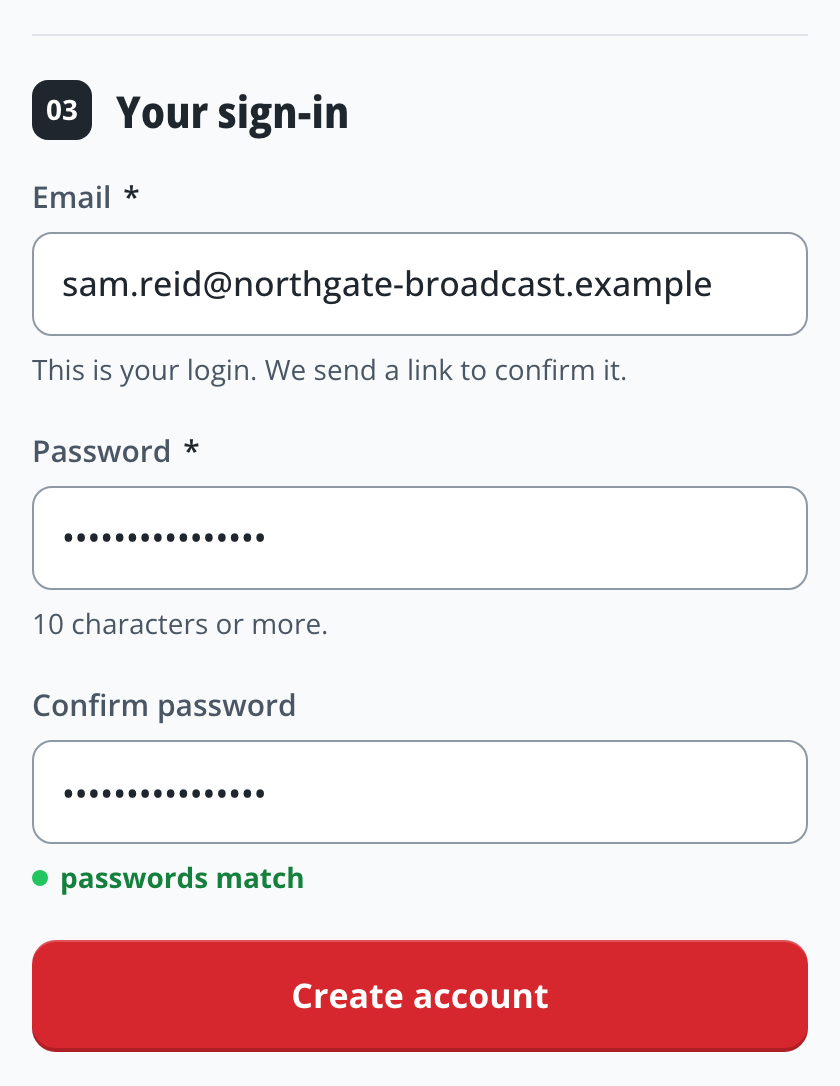
Under Your sign-in, type the email address you will sign in with, and choose a password of 10 characters or more, twice. Press Create account.
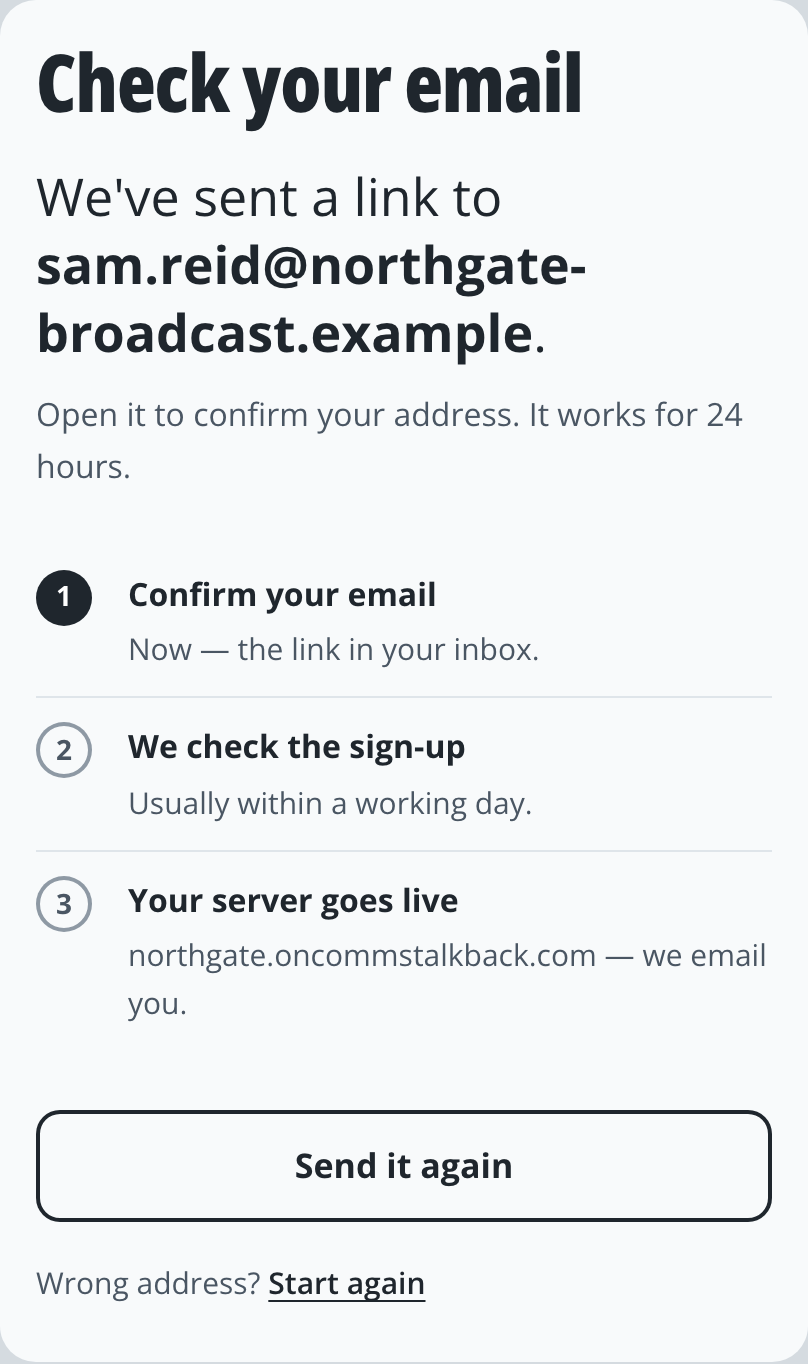
The page says Check your email. Open the message from ON Comms Talkback and press Confirm my email. The link works for 24 hours.
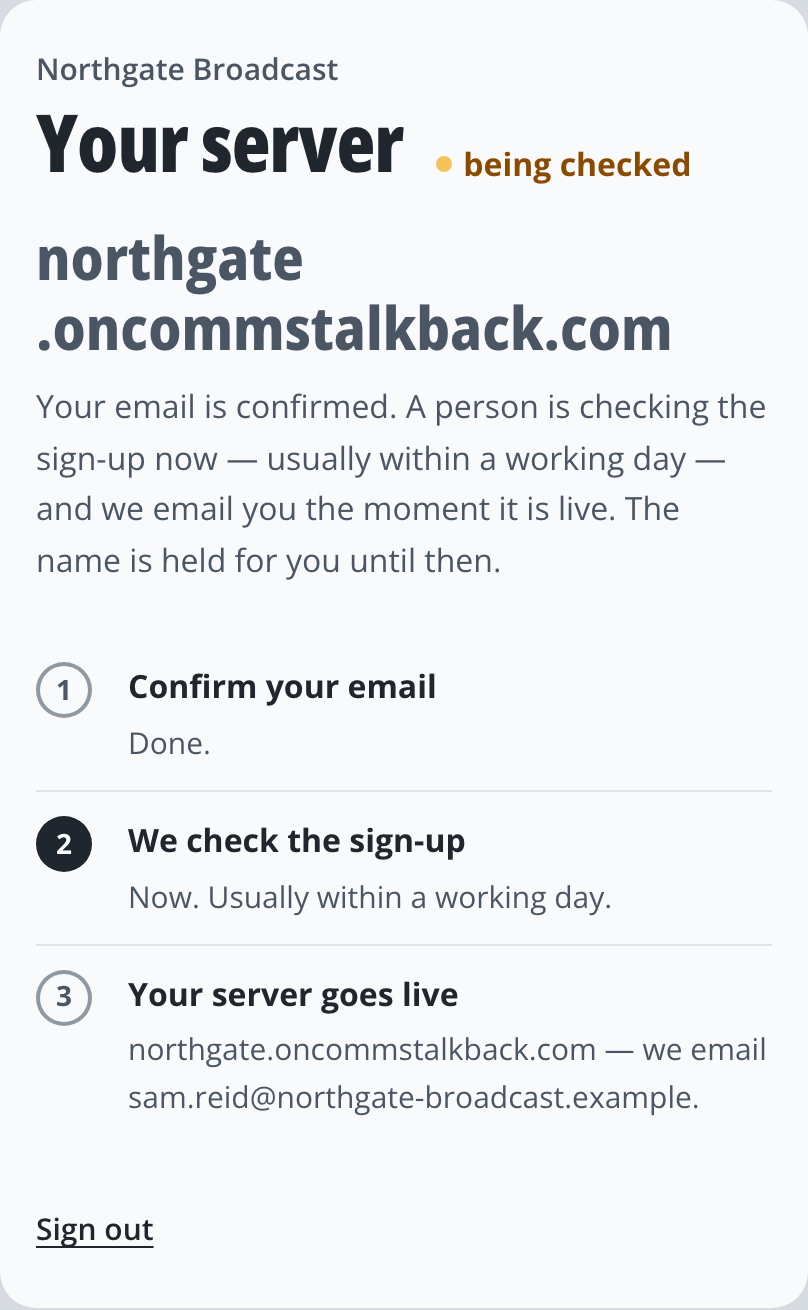
Your account page now says your server is being checked. A person approves each new sign-up, usually within a working day, and emails you the moment your server is live.
If it doesn’t work
The email does not arrive
Look in your spam or junk folder, then press Send it again on the Check your email page. If you have left it, sign in with your email and password and it comes back.
The server name says “taken” or “not allowed”
Choose another. A name is taken if someone has it already. It is not allowed if it is one we keep back (such as www or admin, or names that look like ours), or if it breaks the rules above. The reason is written under the field.
You typed your email address wrongly
Press Start again on the Check your email page. The name is free again, and the form comes back with what you typed, except the email address and password.
The link says it has expired or been used
Sign in with your email and password. If you have not confirmed yet, the page offers Send it again. If you have, you will see where the sign-up stands.
You are emailed that you already have an account
That address has signed up already. Sign in, or choose Forgotten your password? there.
Stuck on a step?
Write to support@oncommstalkback.com with the page you are on and what your screen says. Or book a walkthrough, and we will go through it with you.