For your crew: talk, lock and levels
A page to send your crew. It covers what they need on the talk panel: how to talk, how to lock a key open, how to try a Mic test line, and how to set how loud each line is.
- Takes about
- 3 minutes
- You need
- To be signed in and connected to a group
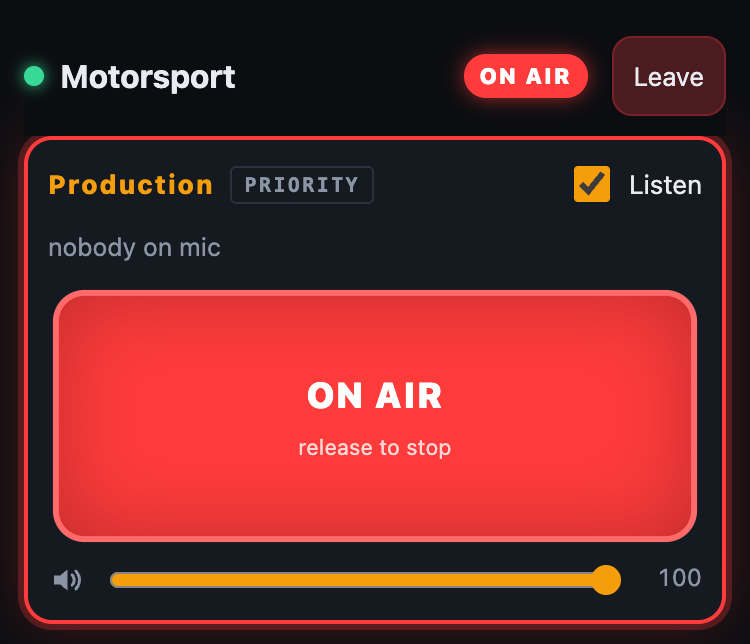
Press and hold a key to talk, and let go to stop. While you hold it the key is red and says ON AIR.
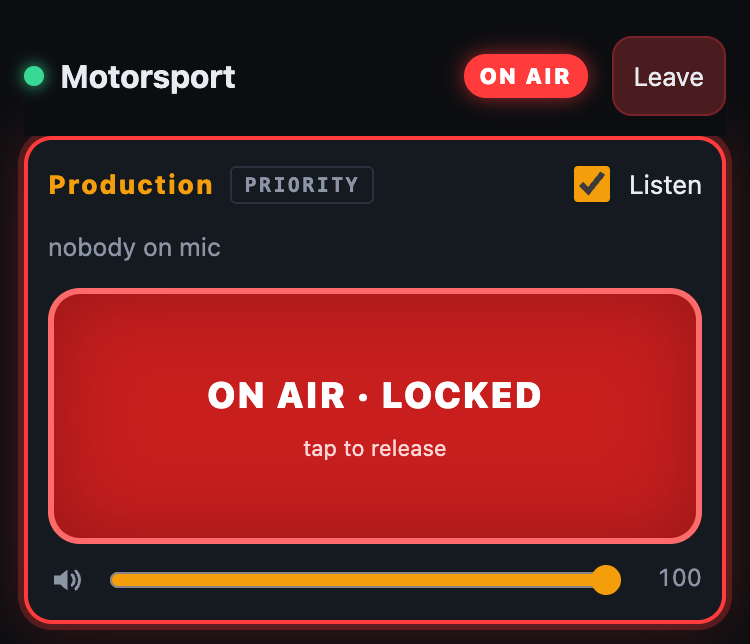
To keep a line open without holding it, tap its key twice. It says ON AIR · LOCKED, and a tap on it closes the line again.
Before a show, try the Mic test line if you have one. Hold its key, say a few words and let go: a moment later you hear your own voice played back, so you know your microphone works. Nobody else hears the playback, but anyone else on that line hears you live while you hold the key, as on any line.
Each line has a Listen tick and a level slider. Untick Listen to stop hearing a line, and move the slider to make it louder or quieter for you only.
Mic mutes everything you send, and Spkr silences everything you hear. Press either again to switch it back on. On a phone they are in the bar at the bottom.

If your admin allows you private calls, you will see “Hold a name to talk privately” by Users online. Hold a person’s name to talk to them alone: their panel shows a key with your name on it, and they hold that to answer.
In a wide browser window, each key shows a number. Hold that number on the keyboard to talk on that line, or hold Space to talk on all of yours. The phone-sized layout shows no numbers.
Use a wired headset if you can. Bluetooth adds 150 to 250 milliseconds of delay.
If it doesn’t work
Nobody can hear you
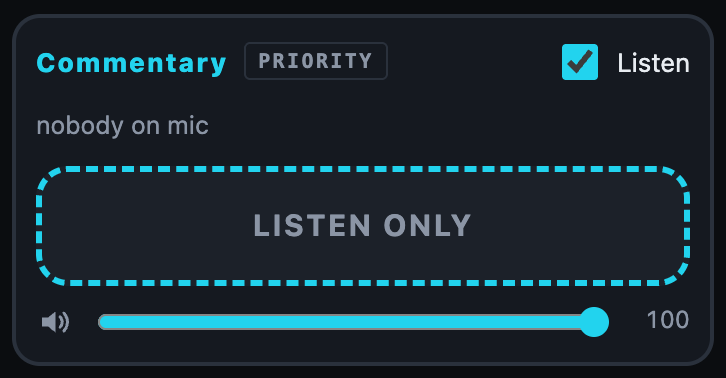
Check that Mic does not say MIC MUTED, that the key says TALK and not LISTEN ONLY (your admin chooses who can talk), and that your browser or phone was allowed to use the microphone.
You cannot hear anything
Check that Spkr does not say SPKR MUTED, that the line’s Listen is ticked and its level is up. If a button says Tap to enable audio playback, tap it.
A line goes quieter while someone talks
A priority line turns the others down while it is in use. The line says ▼ and how many dB, and comes back by itself.
A line you expected is not there
You only see the lines you are on. Ask your admin to add you.
An amber RECONNECTING card covers the panel
The connection dropped, and the panel keeps trying by itself. A line you left open may still be heard: Mute mic on the card closes it. Leave takes you back to the group list.
Stuck on a step?
Write to support@oncommstalkback.com with the page you are on and what your screen says. Or book a walkthrough, and we will go through it with you.