Back up and restore
Save your people, groups and lines to one encrypted file, and put it back when you need to. Do it before big changes, and keep the file and its passphrase somewhere safe.
- Takes about
- 3 minutes
- You need
- Your server open in Admin (how to open it)
- A passphrase of 8 or more characters, which you must keep: the file cannot be opened without it
In Admin, go to Backup.
Under Save this server’s configuration, type a passphrase of at least 8 characters, and type it again to confirm.
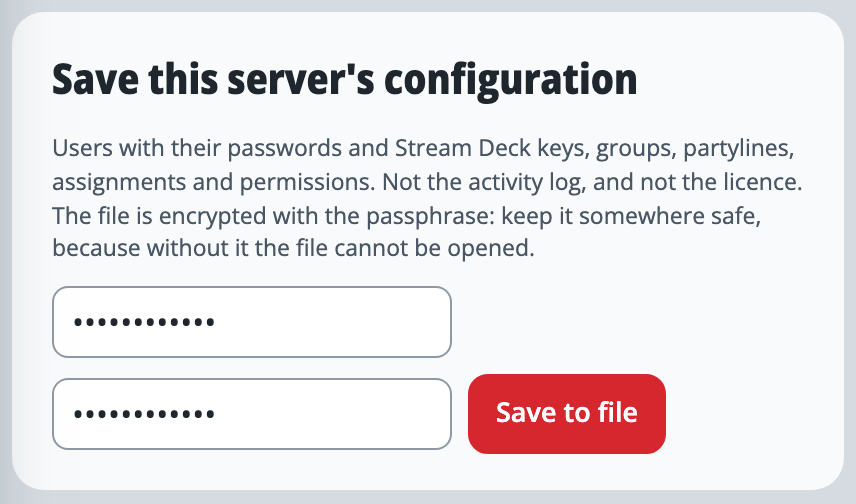
Press Save to file. Your browser downloads a file ending in .oncoms, and a line under the button says how many users, groups and partylines it holds.
The file holds your people, with their passwords and Stream Deck keys, your groups and lines, who is on each line, and your switchers, cameras and audio settings. It does not hold the activity log, your licence, or the codes for ON Comms Tally and ON Comms Bridge.
To put a file back, go to Restore a configuration, choose the file, type its passphrase and press Open. Nothing changes yet: it shows when the file was saved and what is in it.
Choose Merge or Replace. Merge adds and updates from the file and keeps everything else; Replace makes your server exactly like the file.
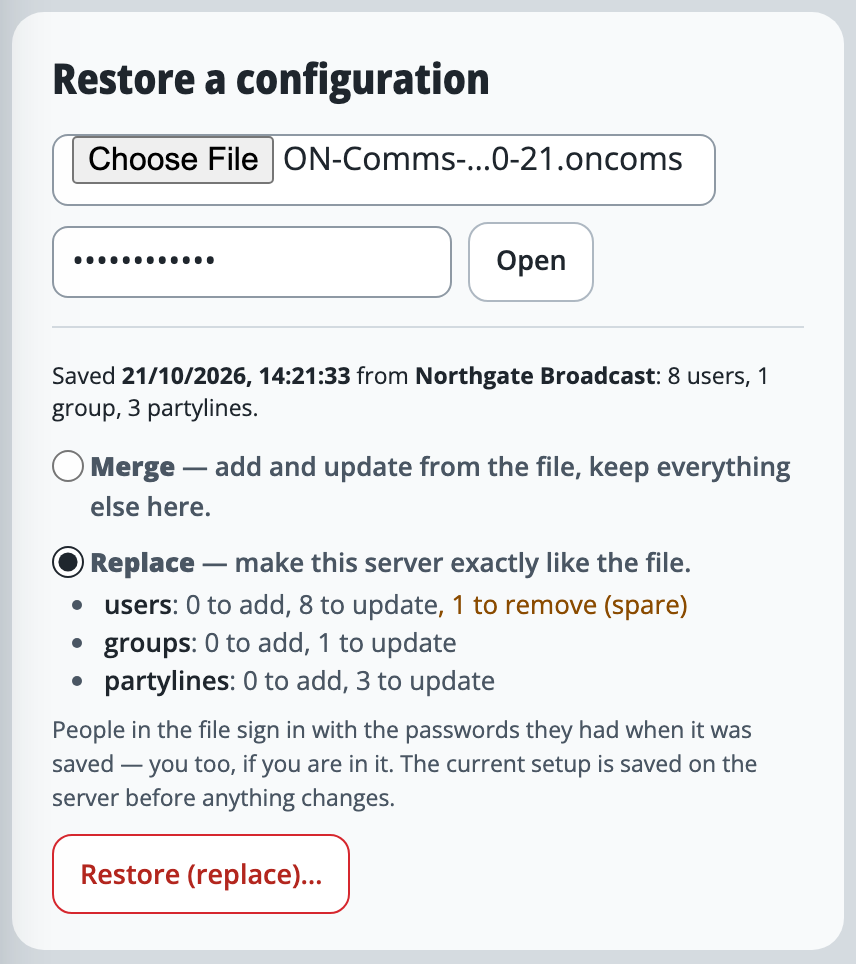
Read the list under your choice of what would be added, updated and removed. Then press Restore (merge)… or Restore (replace)…, and confirm.
Your current setup is saved on the server first, and people on air get their restored lines straight away. People in the file sign in with the passwords they had when it was saved.
If it doesn’t work
It says “The passphrase is wrong, or the file has been changed”
Type the passphrase again, with care over capital letters. If it has been lost, the file cannot be opened, and there is no way to get the passphrase back.
You are about to choose Replace
Replace removes every person, group and line that is not in the file, and takes the people it removes off air. Your own account and the owner are never removed. To bring things back and keep the rest, choose Merge.
It says “Nothing was restored” and that the licence covers 10 users
The file would take you past your trial’s limit, so nothing was changed. Disable or delete some people first, or write to support@oncommstalkback.com for more.
You want to undo a restore
The setup from before it is kept on the server, but Admin does not let you download it. So save a file of your own before you restore, and restore that to go back.
Stuck on a step?
Write to support@oncommstalkback.com with the page you are on and what your screen says. Or book a walkthrough, and we will go through it with you.