Connect it with your Tally code
Give ON Comms Tally your server’s name and a group’s Tally code, so it sends tally to the right show. Each group has a code of its own, and the app sends tally for that group only.
- Takes about
- 3 minutes
- You need
- ON Comms Tally installed on the venue computer
- Your server’s name: the first part of its address, such as northgate for northgate.oncommstalkback.com
- Your server open in Admin (how to open it), with a group made
In Admin, go to Tally and find the group the venue is for. Beside ON Comms Tally app it says no code yet.
Press Get Tally Code. The code appears once, starting onct_, with a Copy button.
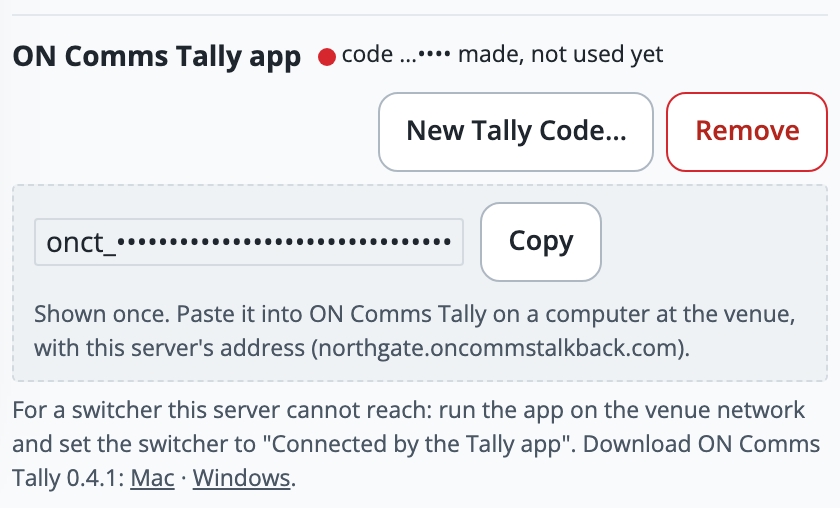
Press Copy, and keep the page open until the code is pasted into the app. Treat the code like a password: anyone who has it can connect an app to this group.
On the venue computer, open ON Comms Tally. Under Set it up, type your server’s name into Server, such as northgate, or its whole address.
Paste the code into Tally app code and press Connect.
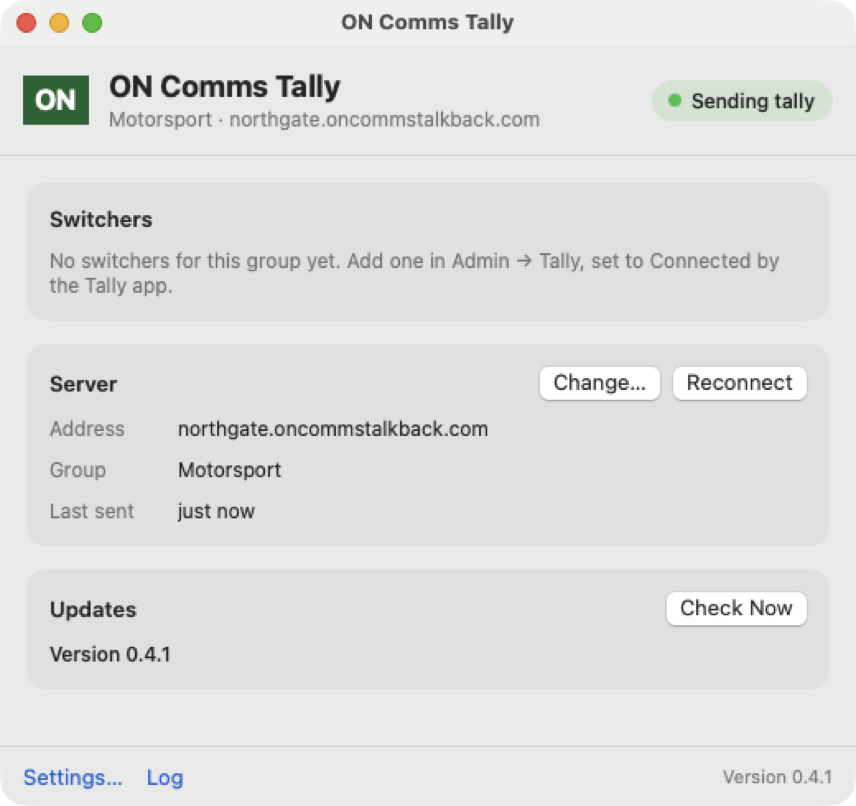
At the top right the window says Sending tally, and under its name it shows your group and your server. On Windows the window has the same words.
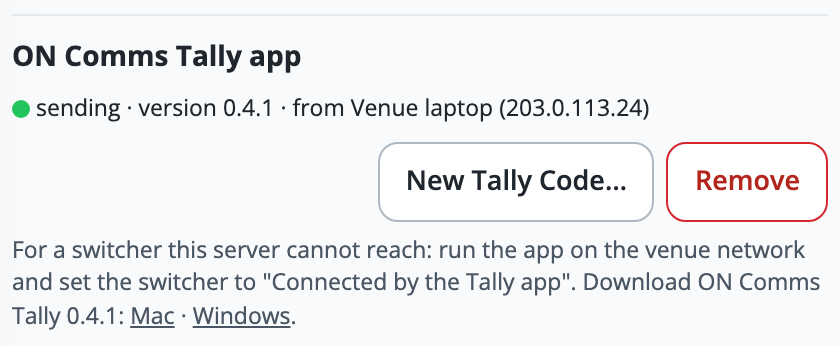
Back in Admin, the line beside ON Comms Tally app turns green and says sending, with the app’s version.
Leave it running: closing the window does not stop it, and you quit it from the green ON in the menu bar on a Mac or the icon beside the clock on Windows. A Mac opens it at login (it turns that on the first time it runs from Applications), and Windows opens it at sign-in once it is set up.
If it doesn’t work
It says “That Tally app code is not valid on this server”
The code was replaced by a new one, removed, or copied wrongly. In Admin press Get Tally Code (or New Tally Code…), then in the app press Change… under Server, paste the new code and press Save and Reconnect (Save on Windows).
It says “Paste the Tally app code from Admin → Tally (it starts onct_)”
What you pasted is not a whole code. Copy it again from Admin, taking all of it and nothing else.
It says “Cannot reach … check the address and this computer’s internet”
Check that the computer is online, and that Server is only your server’s name, such as northgate, with no spaces.
You have lost the code
Admin cannot show it again. Press New Tally Code…, and paste the new one into the app: the app using the old code stops sending until it is given the new one.
Admin says “not sending” with a time, or the window says Not sending
The app has stopped or lost its internet. Open it on the venue computer, read the reason, and press Reconnect (or Try Again, if it is offered): operators see NO TALLY within about 20 seconds of it stopping.
Admin says two computers are sending with this code
That is fine for a spare: the tally comes from one at a time, and the other takes over if it stops. If one should not be running, quit ON Comms Tally on it.
It does not open by itself after the Mac restarts
A Mac turns on Open at login only for a copy in the Applications folder. Drag it there, open it, and in Settings… tick Open at login.
It does not open by itself after Windows restarts
Windows opens it at sign-in only once it is set up, and only if Open ON Comms Tally when I sign in is ticked in its Settings….
Stuck on a step?
Write to support@oncommstalkback.com with the page you are on and what your screen says. Or book a walkthrough, and we will go through it with you.