Give each operator a camera
Tell ON Comms which camera each operator is on, so their screen turns red when that camera is on air and green on preview. You set it in Admin, and operators can change their own when cameras swap.
- Takes about
- 3 minutes
- You need
- A switcher added (ATEM, vMix or TSL UMD), with ON Comms Tally sending
- The operators in the group, with a line each (Who can talk or listen)
In Admin, go to Tally. Under the group’s switchers is a table with a row for each person in the group: on a phone, scroll it sideways to see all its columns.
In the Camera box beside a person, choose their camera. Each switcher’s inputs are listed under its name, such as 1 · Cam 1, and None takes the camera away.
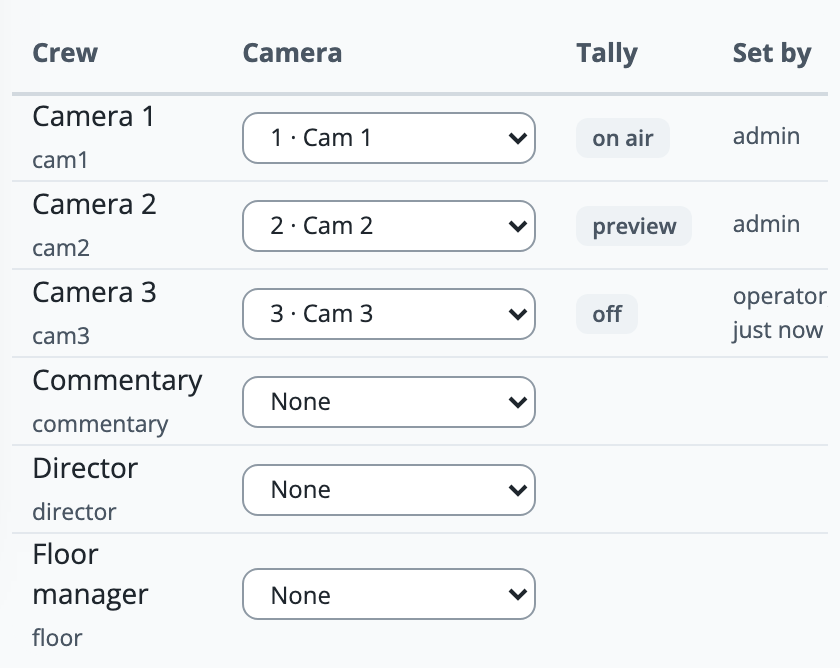
It is saved at once. The Tally column shows what that camera is doing now: on air, preview, off or no tally.
A person has one camera in each group. Their talk panel shows its name at the top, and turns red when it is on air and green on preview.
Operators can change their own camera when cameras swap. In Settings, under Camera tally, they choose it: a box called My camera in a browser or the Mac and Windows client, and a list in the phone apps.
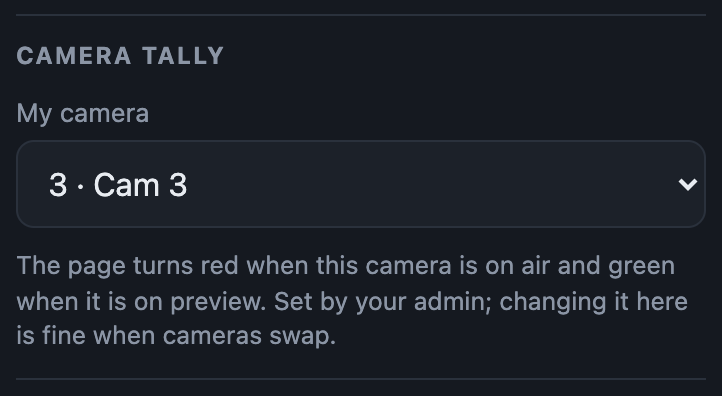
Admin then shows operator and when they changed it under Set by. Choose the camera again in Admin to put it back, and it says admin.
If it doesn’t work
Someone is missing from the table
Only people in the group are listed, so give them a line in the group first (Who can talk or listen). People you have disabled are not listed.
The list shows only Input 1, Input 2 and so on (or Display 0, Display 1 for TSL)
ON Comms does not know the switcher’s inputs yet, because it has not connected. Once the switcher’s line says connected, the inputs appear with their names. A TSL display appears as the truck sends it.
A camera reads no tally
Its switcher is not connected: read its line above the table. With TSL it can also be that the display has not been heard.
The wrong camera lights up
The person’s camera is on a different input than you meant. Check the input’s number and name, and with an ATEM check the M/E in the switcher’s Edit. TSL displays are numbered from 0.
Stuck on a step?
Write to support@oncommstalkback.com with the page you are on and what your screen says. Or book a walkthrough, and we will go through it with you.