Add a switcher: ATEM
Take camera tally from a Blackmagic ATEM. On a cloud site, ON Comms Tally at the venue reads the ATEM and sends its tally to your talkback.
- Takes about
- 5 minutes
- You need
- ON Comms Tally running at the venue, on the same network as the ATEM
- The ATEM’s IP address
- Your site’s Admin (how to open it)
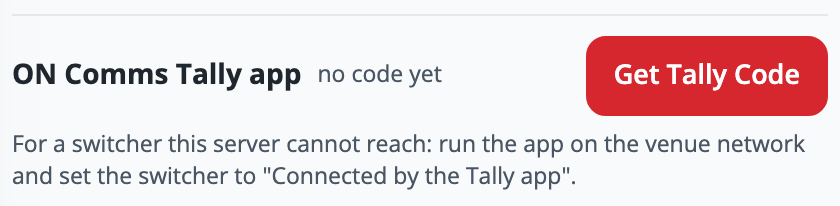
In your site’s Admin (how to open it), go to Tally and find the group. If its ON Comms Tally app has no code yet, press Get Tally Code and connect the app with it first.
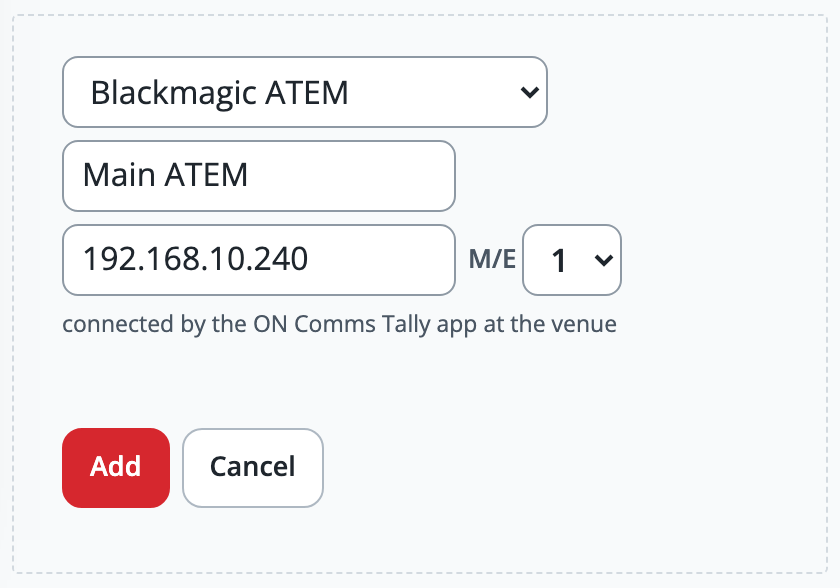
Under the group, press Add a switcher and choose Blackmagic ATEM. Give it a name your operators will recognise, such as Main ATEM.
Type the ATEM’s IP address, as it is set in Blackmagic’s ATEM Setup, and leave M/E at 1 unless you want tally from another mix effect. Press Add.
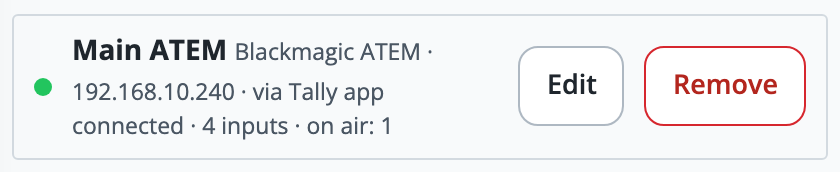
Within a few seconds the switcher shows a green dot and connected, with how many inputs the ATEM has and which is on air.
Give each operator a camera, so their screen turns red while it is on air and green while it is on preview.
If it doesn’t work
It says “No answer from an ATEM at …”
ON Comms Tally cannot reach the ATEM. Check the address, and that the computer running ON Comms Tally is on the same network as the ATEM. Press Edit to correct the address.
It says “waiting for the ON Comms Tally app”
Nothing is sending this group’s tally. Open ON Comms Tally at the venue and check that it says it is sending, to this group: see Connect it with your Tally code.
It says “This ATEM has 1 M/E, so M/E 2 does not exist”
Press Edit and choose an M/E the message names. An ATEM Mini has one.
Stuck on a step?
Write to support@oncommstalkback.com with the page you are on and what your screen says. Or book a walkthrough, and we will go through it with you.