Install ON Comms Bridge
Put ON Comms Bridge on a Mac or a Windows PC at the venue, beside your sound desk or Dante network. It plays a partyline to the desk and brings the desk’s audio back onto the line, over the internet, for your cloud site.
- Takes about
- 5 minutes
- You need
- A Mac (macOS 13.5 or later) or a Windows PC (Windows 10 version 1809 or later, 64-bit) at the venue, with internet access
- That computer connected to the venue’s audio: a desk or audio interface it can see as a sound device, or Dante Virtual Soundcard on the Dante network
- Your server open in Admin (how to open it)
In your server’s Admin, go to Downloads. Under Venue apps, find ON Comms Bridge.
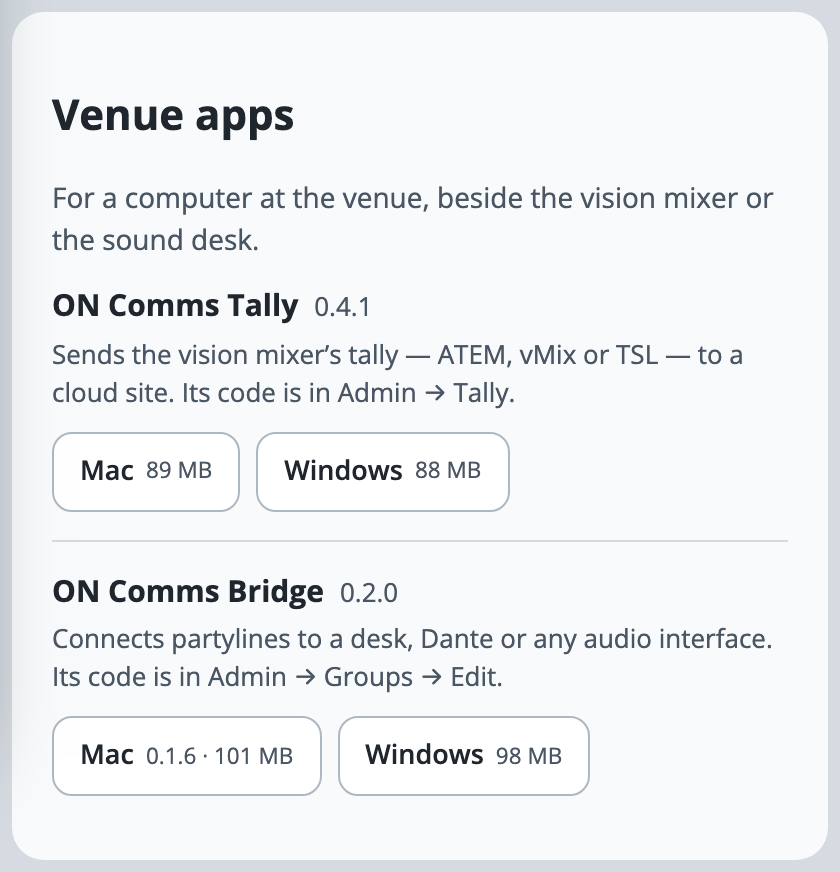
Press Mac or Windows to download it, on the venue computer if you can. A Mac gets a zip file, and Windows gets an installer.
On a Mac, open the zip (double-click it if your browser has not already), drag ON Comms Bridge onto Applications, and open it from there, so that it can update itself later. The first time, macOS will not open it, because the app is not yet signed with an Apple Developer ID: try to open it, then go to System Settings, then Privacy & Security, and press Open Anyway.
On Windows, run the installer: it installs for everyone on the PC, so Windows asks for an administrator’s permission once. If Windows says it protected your PC, choose More info, then Run anyway (the installer is not signed yet), and on the installer’s last page leave Open ON Comms Bridge ticked and press Finish.
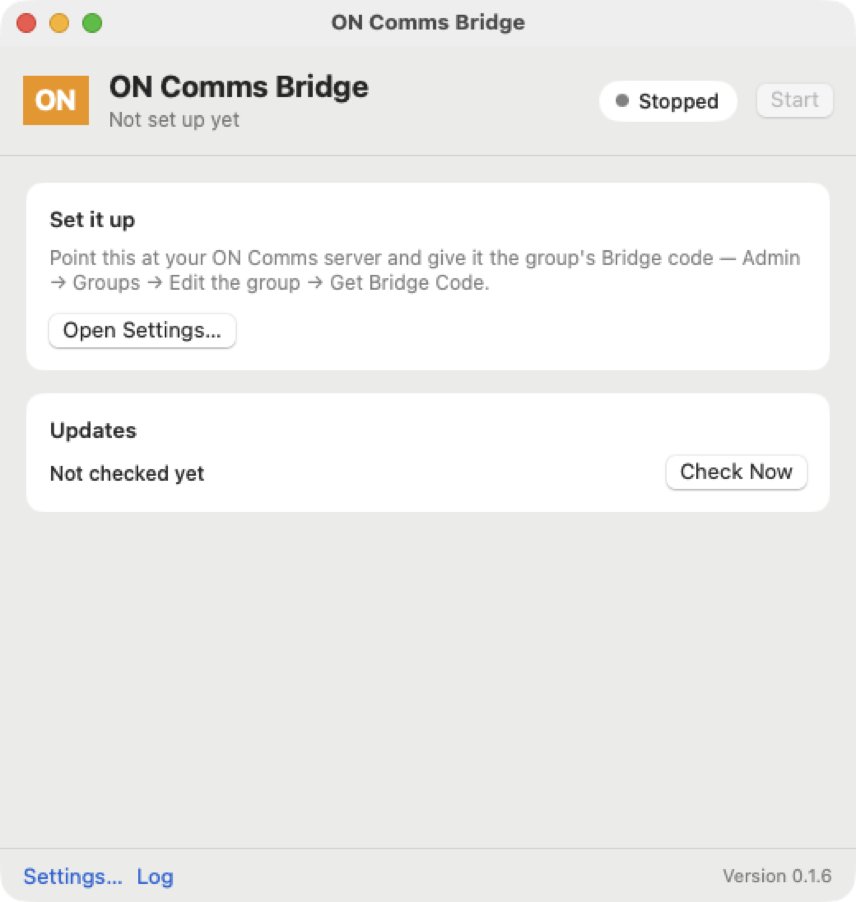
The window opens on Set it up: on a Mac it has an Open Settings… button, as in the picture, and on Windows it has boxes for your server and your Bridge code, and a Connect button. Next, connect it with your Bridge code.
Closing the window does not stop it: the amber ON is still in the menu bar on a Mac, or beside the clock on Windows (under Show hidden icons at first), and Quit ON Comms Bridge in its menu stops it. While it is running, the computer does not go to sleep by itself, though the display may.
On a Mac it does not open itself at start: to have it back after a restart or a power cut, go to System Settings, then General, then Login Items & Extensions (Login Items on older macOS), and add ON Comms Bridge to the apps that open at login. On Windows it starts itself when someone signs in, once it is set up, with just its icon beside the clock, so a PC that must come back by itself after a power cut needs Windows set to sign in by itself.
When a new version is ready, the window’s Updates card says so. Press Install… and confirm: every line is off the desk for a few seconds while it updates, macOS asks about the microphone again afterwards, and on Windows an administrator’s permission is asked for first.
If it doesn’t work
You cannot find ON Comms Bridge on the website’s Downloads page
The website’s Downloads page lists the apps for your crew only. ON Comms Bridge is in your server’s Admin, under Downloads, in Venue apps.
macOS says it could not verify ON Comms Bridge
Close the message, then go to System Settings, Privacy & Security, and press Open Anyway beside ON Comms Bridge. You do this once on each Mac.
The Windows installer says it needs 64-bit Windows 10
ON Comms Bridge needs 64-bit Windows 10 version 1809 or later. Use another computer, or update Windows.
The Windows installer says Windows would not open its firewall
ON Comms Bridge is installed. It connects out to your server, so nothing needs to reach it, but the first time it carries a line Windows may ask whether to allow an app in the ON Comms Bridge folder (its path ends in ON Comms Bridge Engine.exe): choose Allow.
You closed its window and cannot find it, or nothing happens when you open it again
Closing the window leaves it running, and only one copy runs for each person signed in, so opening it again brings the one that is running to the front. On a Mac, click the amber ON in the menu bar and choose Open ON Comms Bridge. On Windows, click the amber ON beside the clock (under Show hidden icons at first), or right-click it for its menu.
It says “Move ON Comms Bridge to Applications before updating it.”
An app can only update itself from where it is installed. Drag ON Comms Bridge onto Applications, quit it, open it from there, and try again.
The window says Windows is blocking the microphone
Nothing can come in from the desk until Windows lets desktop apps use the microphone: Windows counts a desk or Dante input as a microphone. Press Open microphone settings in the card and turn on all three switches on that page: Microphone access, Let apps access your microphone and Let desktop apps access your microphone. Any one of them off stops the Bridge (Windows 10 words these a little differently). The lines start by themselves within a minute, and the card goes when they do.
The Windows PC restarted, and ON Comms Bridge is not carrying
ON Comms Bridge starts when someone signs in to Windows, not when the PC starts, so until somebody does, nothing is carried. It starts itself at sign-in once it is set up and Open ON Comms Bridge when I sign in is ticked under Settings…. For a PC that must come back by itself, set Windows to sign in by itself.
Admin says “Audio on this server” and has no Get Bridge Code
That is ON Comms Server, the version you run on your own Mac or PC. It carries a line’s audio itself, and needs no Bridge: choose devices in the same Audio in and out table.
Stuck on a step?
Write to support@oncommstalkback.com with the page you are on and what your screen says. Or book a walkthrough, and we will go through it with you.