Gains, and why mix-minus matters
Set how loud each line is going to the desk and coming back from it, and keep the desk from sending the line its own audio back. The last part matters most: a loop is the one thing here that can ruin a show.
- Takes about
- 4 minutes
- You need
- A line carried by ON Comms Bridge, with a device chosen each way you want to set
- Access to the desk, to see what it sends back
Under Gain, once a device is chosen, each way has a box in dB. ON Comms Bridge applies it to the audio itself, so it is exact, and does not depend on a knob someone turned.
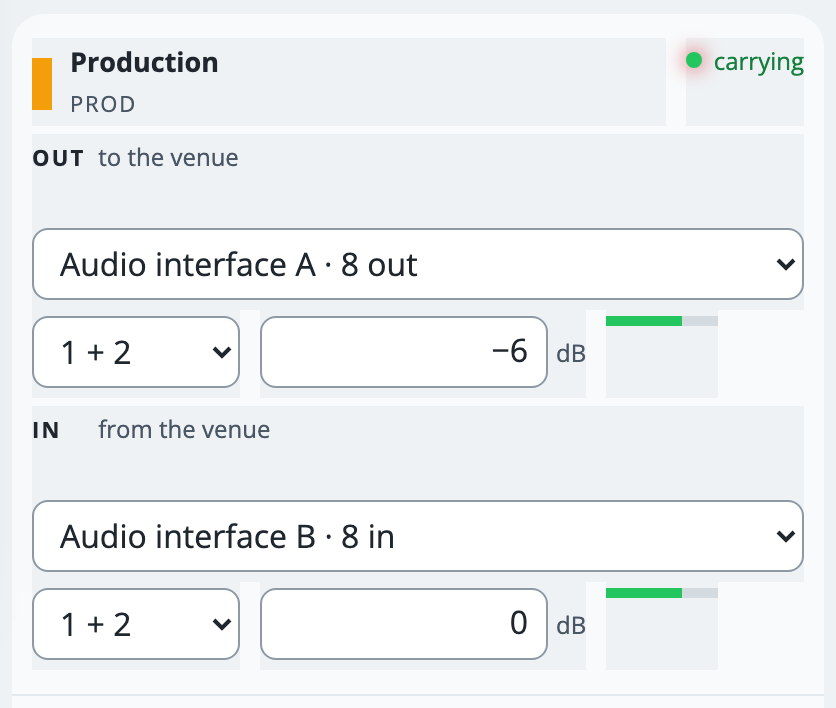
Type a number, such as −6, and press Enter or click away. It is saved at once, and anything beyond −40 to +20 dB is held to those limits.
Gain on the Out row sets how loud the line reaches the desk. A desk input set to mic level needs a much quieter signal than one set to line level, so start at 0 and lower it if the desk’s input clips.
Everyone talking on the line is mixed into one feed for the desk, so it hears one mix however many people talk.
Gain on the In row sets how loud the desk is on the line. Lower it with a negative number if the desk’s feed is too hot, or raise it if the line is too quiet.
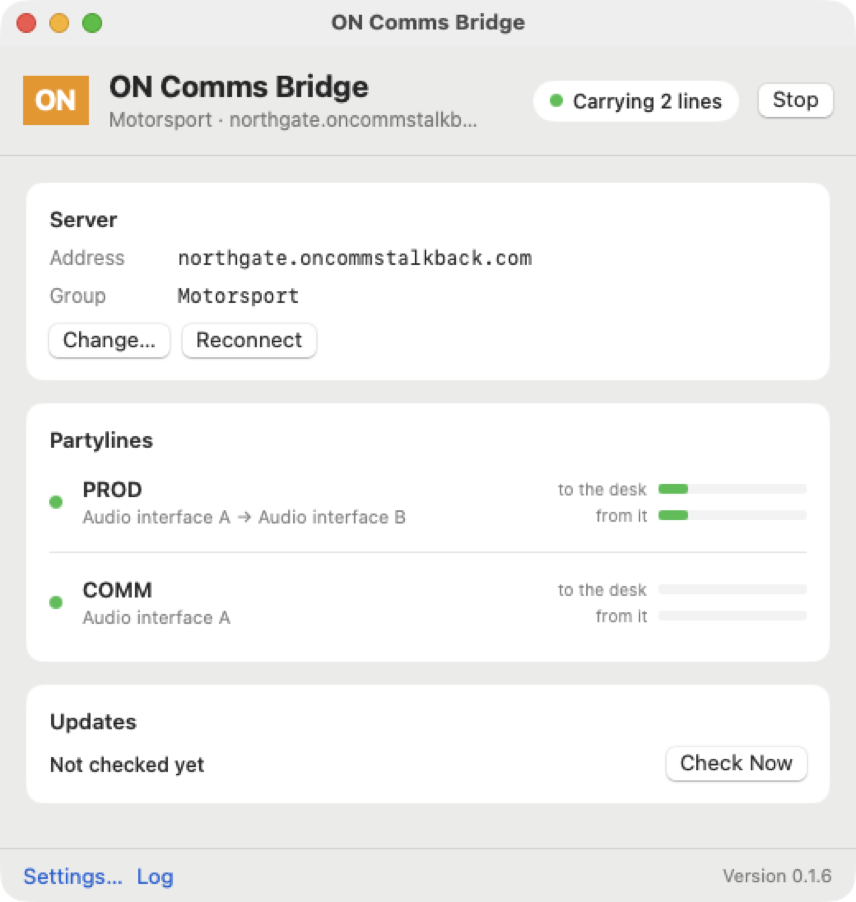
Watch the Level bars, one for each way, which show the loudest the audio has been since the last report. The Bridge’s own window, on a Mac or on Windows, has a meter each way for each line, one to the desk and one from it, and a meter turns red close to the top. The picture is a Mac, and Windows’ meters follow the audio about four times a second.
The line is open only while the desk is sending something: after a second and a half below about −50 dB, after its gain, the Bridge closes it, as a key is up between words. A hiss louder than that keeps the line on mic.
Never let the desk send the line its own audio back. On the desk, make the return to ON Comms a mix-minus: everything the line should hear, with the channel that carries the line’s own feed left out.
If it doesn’t work
There is a howl, or the line repeats itself
Something is sending the line’s audio back to it. In Admin, set the In device to None straight away to stop it. Then check that the desk’s return leaves out the channel carrying the line’s feed, and see Dante and desk wiring.
You are not sure the desk’s return is a mix-minus
If the desk’s feed into ON Comms carries what ON Comms sends it, the loop is outside ON Comms, and with gain up each way it howls. Keep the two gains added together at 0 dB or below unless you know the loop is open.
The Bridge shows on mic all the time
The desk is sending more than about −50 dB, even if it is only hiss. Lower the In gain, or lower what the desk sends, until the line closes between words.
The line never opens for the desk
Below about −50 dB, after its gain, the line stays closed. Raise the In gain, or send the desk’s feed louder.
The gain box goes back to what it was
What you typed was not a number. Type a number only, such as −6 or 3.5.
Stuck on a step?
Write to support@oncommstalkback.com with the page you are on and what your screen says. Or book a walkthrough, and we will go through it with you.