Connect it with your Bridge code
Give ON Comms Bridge your server’s address and a group’s Bridge code, so it carries that group’s lines. Each group has a code of its own, and a Bridge carries the lines of its group only.
- Takes about
- 3 minutes
- You need
- ON Comms Bridge installed on the venue computer
- Your server name, the one you chose when you signed up, such as northgate for northgate.oncommstalkback.com
- Your server open in Admin (how to open it), with a group and its partylines made
In Admin, go to Groups, press Edit beside the group the venue is for, and find Audio in and out under its partylines; the line beside ON Comms Bridge says not set up yet. On a phone the Groups table scrolls sideways, but this section stays inside the screen.
Press Get Bridge Code. The code appears once, starting oncb_, with a Copy button.
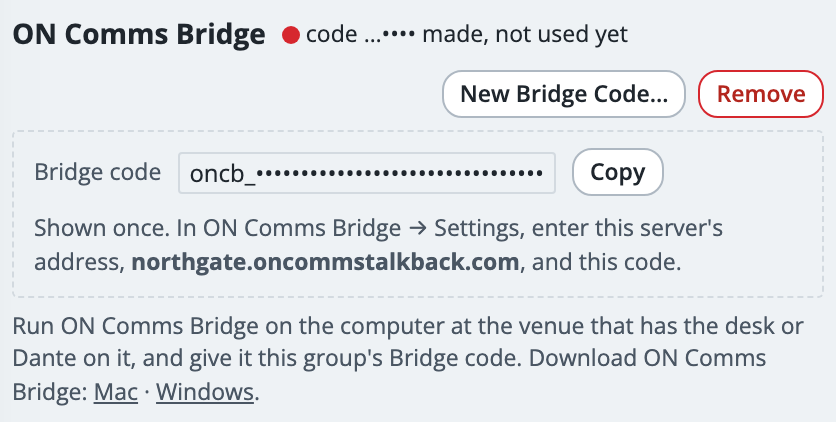
Press Copy, and keep the page open until the code is in the app. Treat the code like a password: anyone who has it can connect a Bridge to this group.
On the venue computer, open ON Comms Bridge. On a Mac, press Open Settings…; on Windows, the Set it up card already has the boxes. In Server, type your server name, such as northgate, or your server’s whole address.
Paste the code into Bridge code. On a Mac, press Save and reconnect, and on Windows, press Connect.
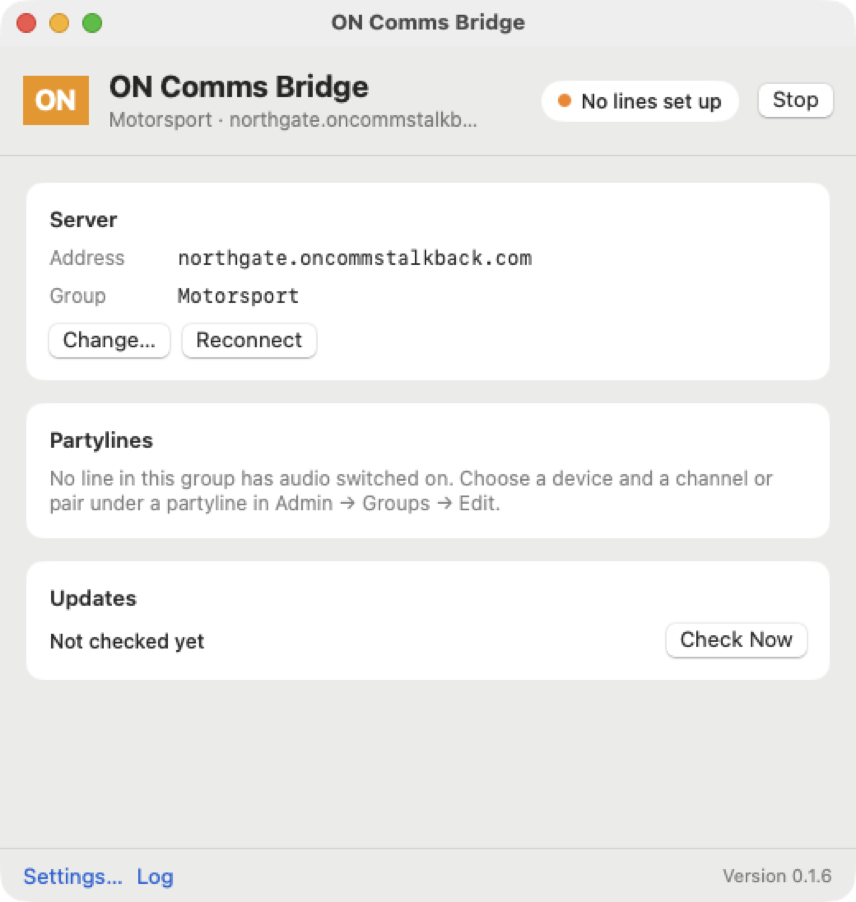
The window shows your group and your server under its name, and its Server card has the address it is using. It says No lines set up until you choose audio for a line, which is the next article. The picture is a Mac, and Windows shows the same cards.
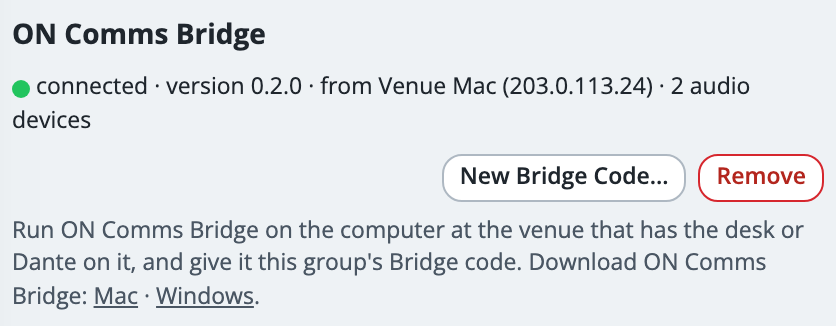
Back in Admin, the line beside ON Comms Bridge turns green and says connected, with the Bridge’s version, the computer it is on and how many audio devices it can see.
Leave it running: closing the window does not stop it. Once it is set up, it starts carrying audio whenever it opens.
If it doesn’t work
It says “That ON Comms Bridge code is not valid on this server”
The code was replaced, removed, or copied wrongly. In Admin press Get Bridge Code (or New Bridge Code…), then open Settings… in the Bridge, paste the new code and press Save and reconnect (Save on Windows).
It says “Failed to parse URL from …”
This Bridge is older than 0.1.6, which needs the whole address. Type it starting https://, such as https://northgate.oncommstalkback.com, and press Save and reconnect; then update it from its Updates card, or for 0.1.4 and older, install it again from Admin’s Downloads.
It says what you typed “is not a server name or address”
The Server box has a space or a character an address cannot have. Type your server name on its own, such as northgate, and press Save and reconnect (Save on Windows).
It says “fetch failed”
The computer could not reach that address. Check that it is online, and that the address is spelt exactly as your server’s.
It says “the server answered 404”, or “did not answer as an ON Comms server”
The address does not lead to your server. Check the server name in it: it is the first part of the address you use to open Admin.
You have lost the code
Admin cannot show it again. Press New Bridge Code…, and give the new one to the Bridge: the Bridge using the old code stops carrying audio until it has the new one.
Admin says “not connected” with a time, or the window says Stopped
The Bridge has stopped, or the computer lost its internet or went to sleep. Open ON Comms Bridge, read what its Trouble card says, and press Reconnect.
A line says “another ON Comms Bridge is carrying this line”
The same code is set on two computers, and each line is carried by one Bridge at a time. Quit ON Comms Bridge on the computer that should not carry it, then press Reconnect on the other.
A line says “removed from the group in Admin → Live”
Someone removed the Bridge from the group in Admin’s Live tab. Press Reconnect in the Bridge, or restart it, to carry the line again.
Stuck on a step?
Write to support@oncommstalkback.com with the page you are on and what your screen says. Or book a walkthrough, and we will go through it with you.