Choose a device and channels
Choose, for each partyline, the audio device it plays out on and the one it listens to, and the channel or pair on each. The two ways can be different devices, and a line is carried as soon as it has a channel.
- Takes about
- 5 minutes
- You need
- ON Comms Bridge connected: Admin shows it as connected
- The desk or interface switched on and connected to that computer, or Dante Virtual Soundcard running on it
- A group with the partylines you want to carry
In Admin, go to Groups, press Edit beside your group, and find Audio in and out under its partylines. On a phone the Groups table scrolls sideways, but this section stays inside the screen.
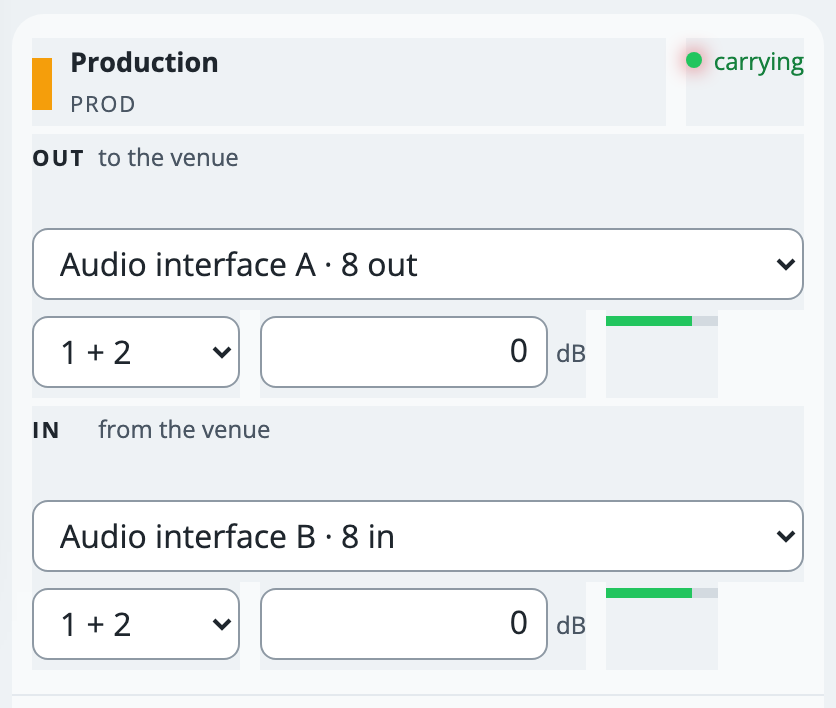
Each line has two rows: Out to the venue is the line going to the desk, and In from the venue is the desk coming onto the line. On a desktop they are rows of a table with Device, Channels, Gain, Level and Status columns, and on a phone each line is a block, as in the pictures.
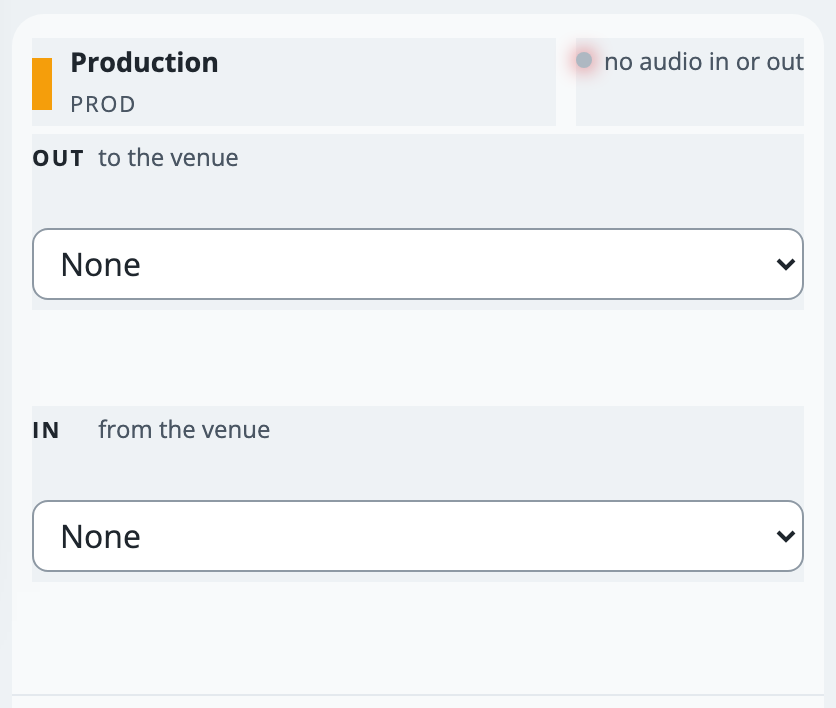
Under Out to the venue, open Device and choose the desk’s or Dante’s device. It lists only devices that can play, each with how many channels it has.
Open Channels and choose where the line goes. Pairs, such as 1 + 2, play the line on both channels of the pair, and Single channels play it on one.
Under In from the venue, choose the device the desk sends back on, and its channel or pair. It lists only devices that can record, and a pair mixes both channels onto the line, each at half the level.
Leave a way on None if nothing travels that way. A line can be a feed to a desk with nothing coming back.
Each choice is saved as you make it, and the line starts. On a Mac, if macOS asks whether ON Comms Bridge may use the microphone, allow it. Within about ten seconds the line’s Status reads carrying, with a Level bar for each way.
macOS asks about the microphone because ON Comms Bridge records from your audio device, and it may ask again after an update of the Bridge. Until it is answered, the line waits. Windows does not ask about desktop apps: it has three switches that cover them, and if any of them is off, the Bridge’s window says Windows is blocking the microphone.
If it doesn’t work
The Device menu says “Connect ON Comms Bridge first”
No Bridge is connected to this group. Connect it, and the menus fill with what it can see.
The status says “no Bridge connected” or “not carried: no Bridge connected”
The Bridge has stopped, is off the internet, or its computer is asleep. Open ON Comms Bridge on the venue computer, and press Reconnect.
The device you want is not in the menu
Keep the group open in Admin: the Bridge reads its devices again within seconds while you look. If it is still missing, check the device is on and connected to the computer, and that its own software, such as Dante Virtual Soundcard, is running. Out lists only devices that can play, and In only devices that can record. On Windows, only devices that Windows offers to every program are listed: one that works only through its ASIO driver is not.
The status says “choose a channel”
A device is chosen but no channel yet. Open Channels under it and pick a pair or a single channel.
The device says “(not connected)”, and the status says “not carried: the Bridge cannot see the out device”
The computer cannot see that device now: it may be unplugged, switched off, or its software stopped. The line keeps its device and channels, and is carried again within about a minute of the device coming back.
The channels went blank when you chose another device
That is meant: a channel number means something different on another device. Choose the channels again.
The line says “the audio device did not open in time”
macOS is probably waiting for an answer to the microphone question, which can be behind other windows. Allow it and the line starts again by itself, or press Reconnect. If you refused it, turn ON Comms Bridge on in System Settings, Privacy & Security, Microphone.
The window says Windows is blocking the microphone, or a line says “The microphone is blocked in Windows”
Press Open microphone settings in the window and turn on all three switches on that page: Microphone access, Let apps access your microphone and Let desktop apps access your microphone. Any one of them off stops a line with an input. It starts again by itself within a minute. A line that only plays to the desk, with nothing chosen under In from the venue, is not affected.
The status says “two devices need ON Comms Bridge 0.1.5”
This Bridge is a Mac one older than 0.1.5, which cannot update itself. Download the current one from Admin’s Downloads and replace it in Applications, or use one device for both ways.
Stuck on a step?
Write to support@oncommstalkback.com with the page you are on and what your screen says. Or book a walkthrough, and we will go through it with you.